Find your completed sessions
Use your personal History, date windows, and workout details to check exactly what was recorded and saved.
Open History from the phone’s bottom navigation or the web sidebar. Check the organization first: your team’s workouts and a personal workspace’s workouts are separate.
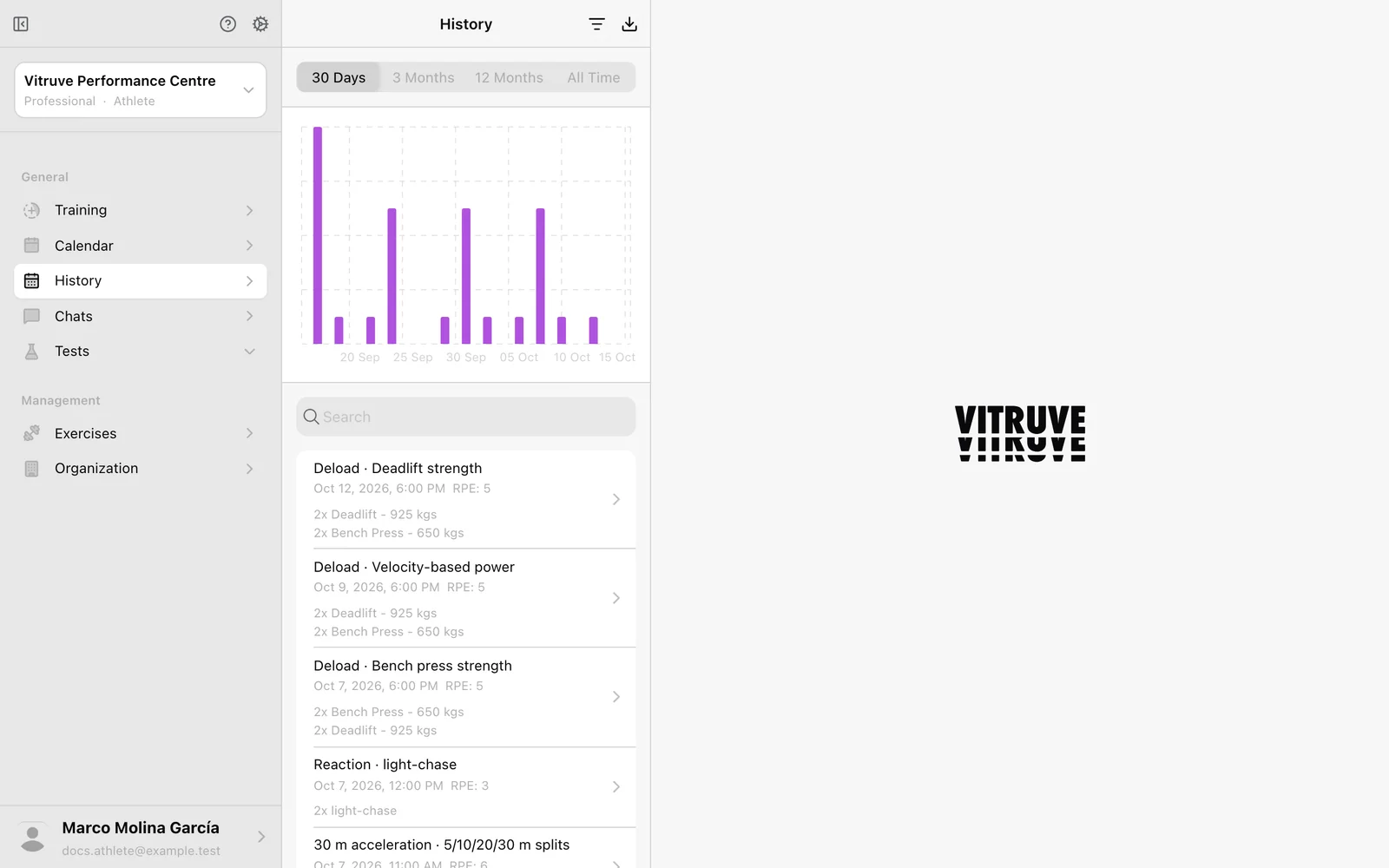
Find a session
- Choose 30 Days, 3 Months, 12 Months, or All Time, within your available access.
- Search by workout name, or use the exercise filter to find sessions containing a movement.
- Continue down the list to load older entries.
- Open the intended session.
Searching for an exercise in the workout-name search can hide the result you want. Clear both search and exercise filters when looking for a missing entry.
Check the details
Review the name, dates, duration, and Perceived Exertion. The Workout tab contains exercises and sets. Wellness appears when the session has a linked questionnaire. Expand recorded set details to inspect measured results when available.
The list’s workout-count chart is not a velocity graph. Open a session and use the metric labels and units to understand its numbers.
Correct a mistake
Use the available controls for supported edits, such as the workout name, RPE, or a manual value. If you cannot make the correction, give your coach the session date, exercise, set, and the correct value. Changing a manual field does not reconstruct the original device signal.
Delete permanently removes the selected record after confirmation. It is not a way to re-upload a missing session. For an entry you cannot find, use Missing workout help.