Explore your own progress in Labs
Use your personal Overview, Trends, and Records pages to follow your measurements without opening team-wide coaching reports.
Labs gives you three personal analysis pages in the web app when your organization plan includes Labs. They read your own measurements in the selected organization. You do not need Coach Mode or a coaching role.
Choose the page for your question
Open the Labs group in the web sidebar:
| Page | Use it to… |
|---|---|
| Overview | Review the qualities you track, with one card per metric and a chart across the selected window. |
| Trends | Follow the same exercise and metric period by period. |
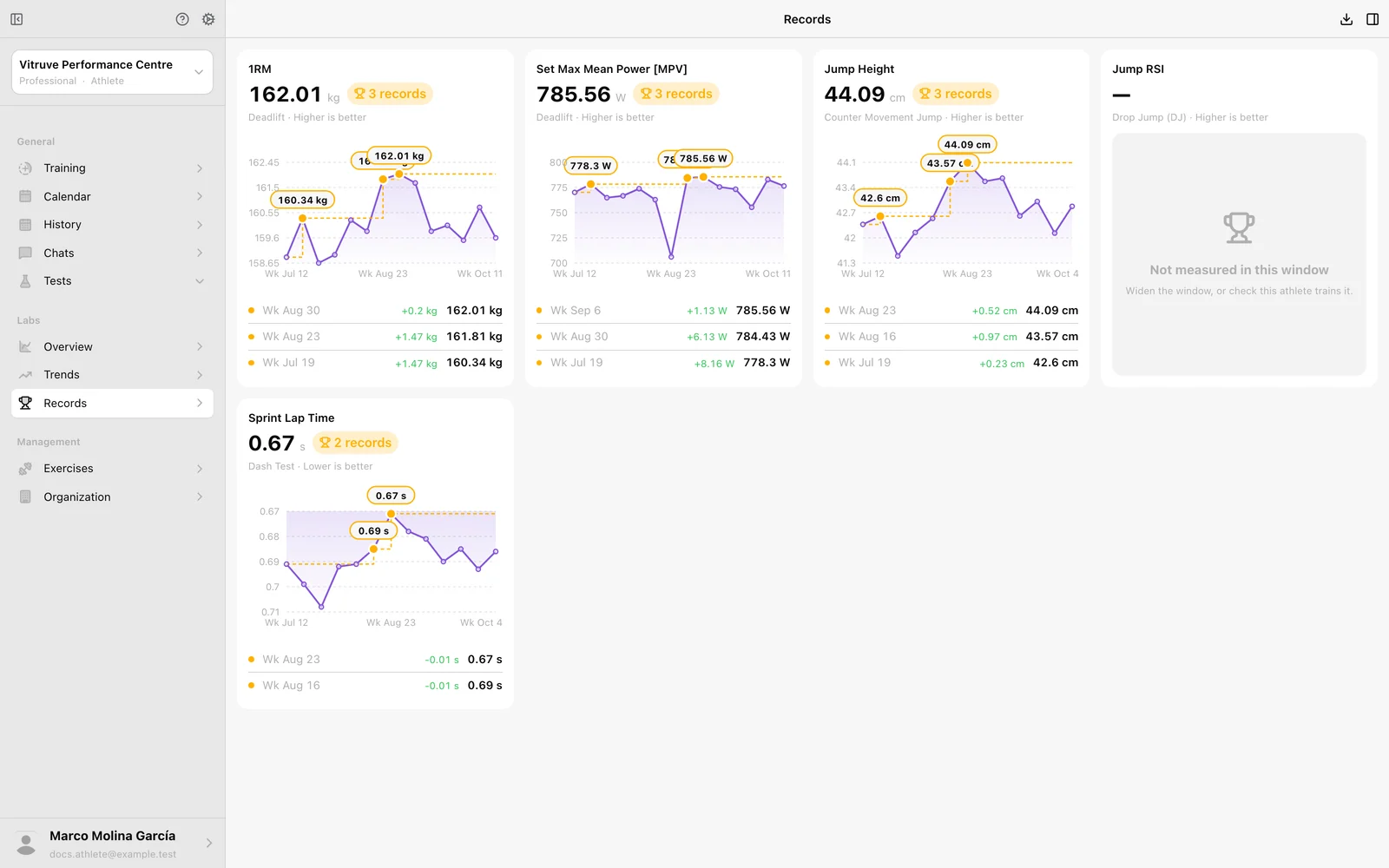
| Records | Find new bests within the selected window. |
These are separate sidebar entries, not tabs under another athlete’s name. There is no squad picker: your profile is selected for you. Team reports, Insights, Dashboards, Scoresheet, and group Ranks belong to the coaching experience. Opening a team-board address in personal mode takes you back to your own profile.
Start with Overview
- Select the organization where you recorded your training.
- Open Labs → Overview.
- Open Setup using the panel button in the header on a wide screen. On narrower screens, the controls appear above the board.
- Choose Date, within your plan’s available history.
- Apply a relevant Preset, or configure the metrics you want to follow. For an exercise-based metric, select the exact exercise variation you recorded.
- Read each card’s unit, calculation, change, and period chart.
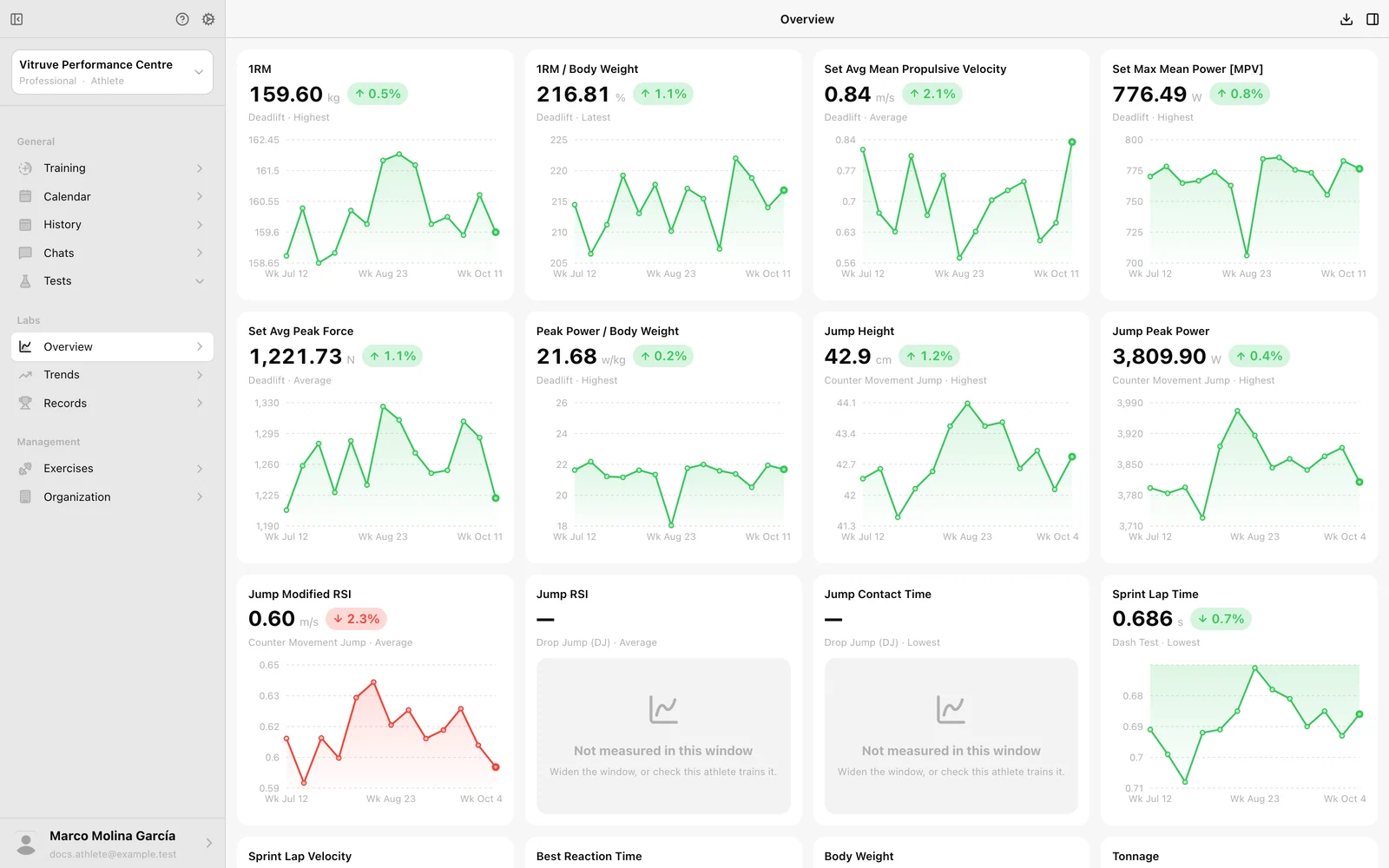
A highest value and an average answer different questions. Check the calculation and any filters before comparing results. Not measured in this window is a missing reading, not a zero score.
Follow changes in Trends
Open Labs → Trends. Review the exercise/metric rows and period columns. The window determines whether periods are days, weeks, or months. Changes compare measured periods; an empty week is not automatically a decline.
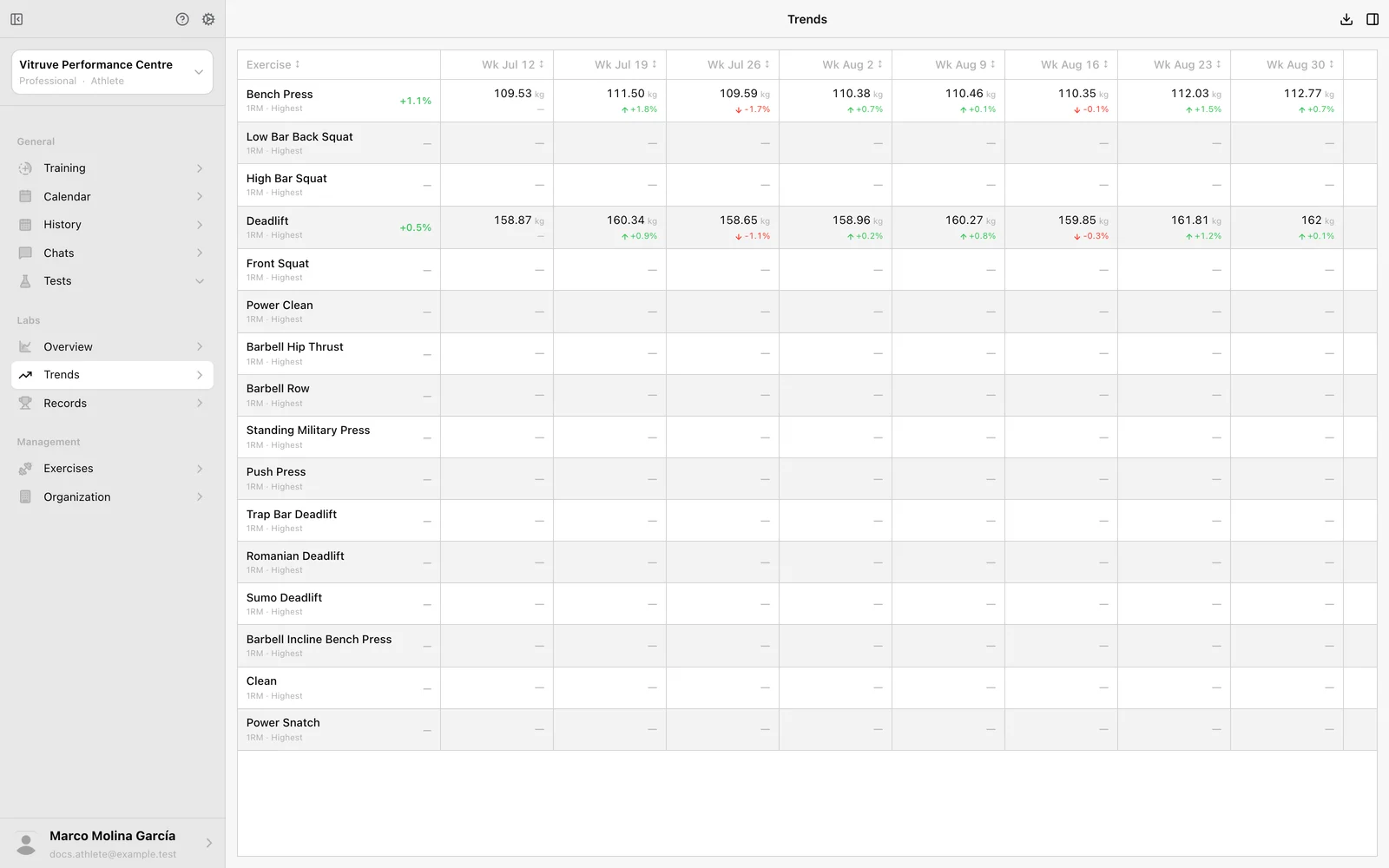
Choose rows that match your training. If a preset lists lifts you did not perform, change those exercises rather than interpreting empty cells as a loss of strength.
Review Records
Open Labs → Records to see best values and the periods that improved on earlier periods inside the chosen window. The first period establishes the starting mark. A new best here is not automatically an all-time personal record.
Keep the comparison meaningful
- Use the same exercise, metric, load context, and protocol when discussing a change with your coach.
- Use Download CSV where offered to export the analysis summary. It is not a raw device-signal export.
- Your page setup and presets stay in this browser on this device. Sending the page address does not send someone else your setup or give them access to your profile.
- Trends and Records need a window 1024 px or wider. Use a desktop or larger browser window if the wider-screen message appears.
If a value is unexpected, inspect the original session in History. Check uploads, dates, exercise selection, calculation, and filters before assuming data has been lost. For an unavailable feature or history range, ask your coach about the organization plan.