Use the passcode and manage app storage
Protect selected screens on a shared device and understand when clearing local app storage is appropriate.
The Security passcode protects selected areas inside the app. Storage manages local cached data. Neither is the same action as changing your login password or deleting your account.
Enable the in-app passcode
Use it when you leave a tablet in the gym for athletes and do not want them opening or changing important information by accident.
Security requires an eligible plan, currently Elite or Professional, and the appropriate coaching permission (Owner or Coach).
- Open Settings → Security: on web or desktop, the sidebar cog; on mobile, More (...) at the bottom right, then Settings.
- Turn on Enabled.
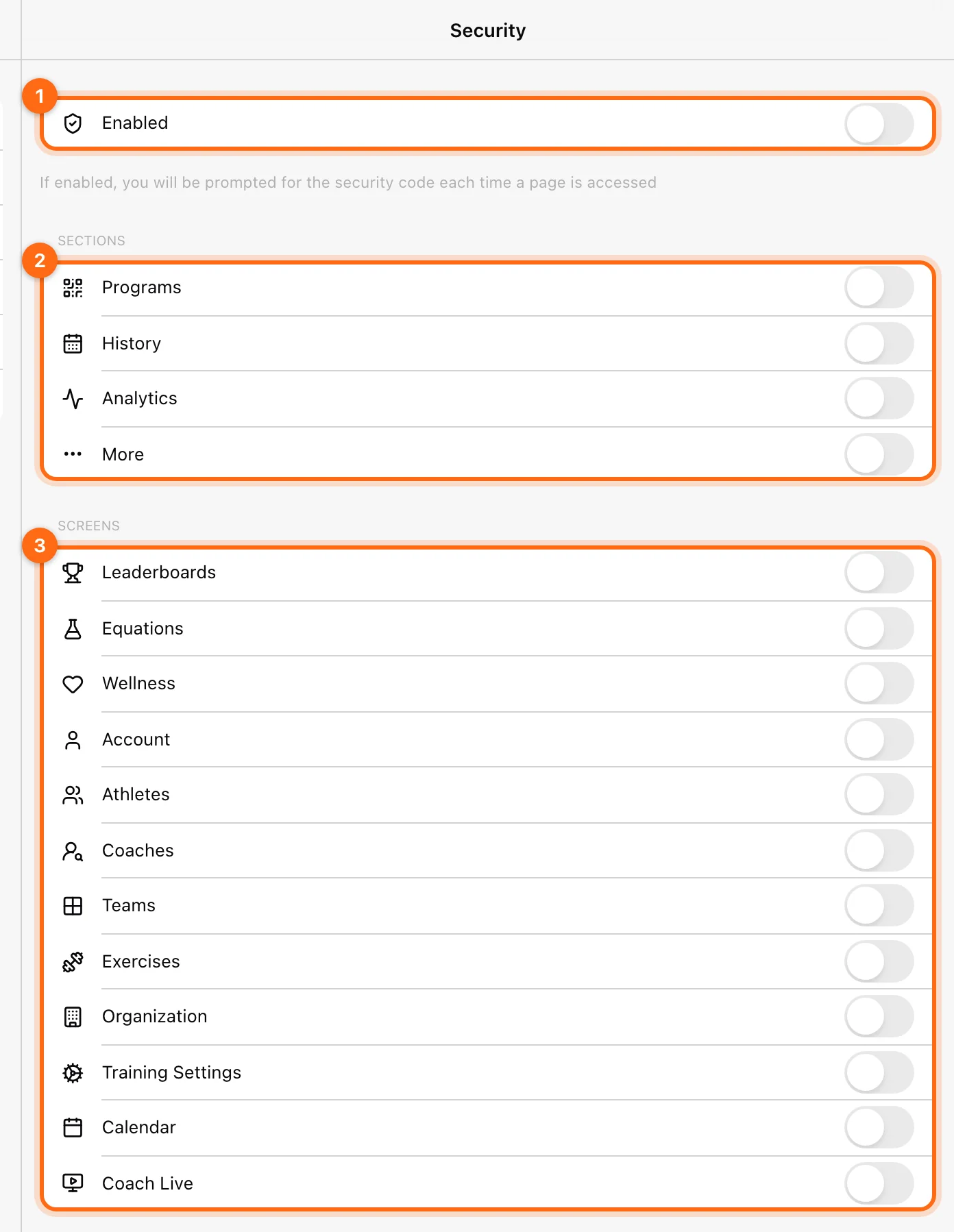
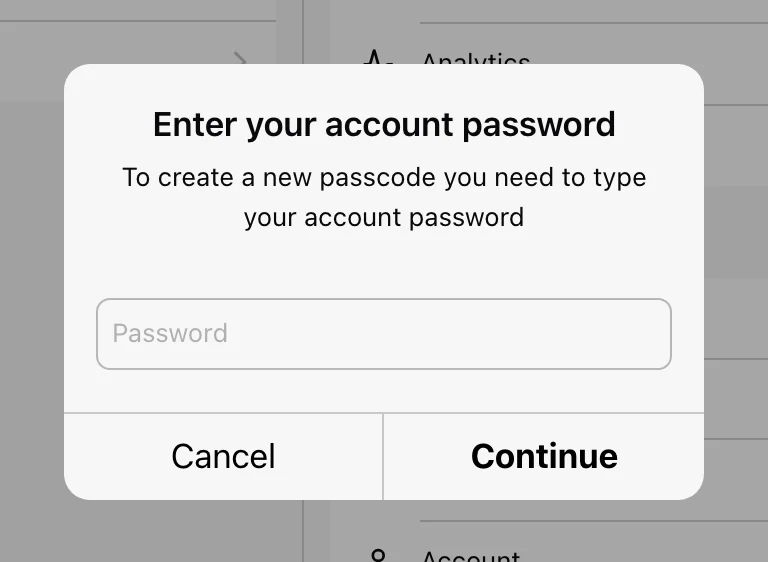
- Verify with your account password when prompted (Enter your account password), then select Continue.
- Create a 4-digit passcode and enter it again to confirm it.
- Choose the Sections and Screens that should ask for it.
| Group | What you can lock |
|---|---|
| Sections | Programs, History, Analytics, More |
| Screens | Leaderboards, Equations, Wellness, Account, Athletes, Coaches, Teams, Exercises, Organization, Training Settings, Calendar, Coach Live |
This can protect areas such as Programs, History, Account, roster management, training settings, Calendar, and Coach Live on a shared gym device. For example, lock Leaderboards so athletes cannot view or change rankings, or lock Training Settings and Account on a shared device. Choose the controls needed for that station rather than assuming every area is protected automatically.
Check: open a locked area. The app should show Enter the passcode to continue with a keypad, every time the page is accessed.
Turn the passcode off or change what it locks
- Open Settings → Security. If Settings itself is locked, enter the passcode first.
- Turn off Enabled to stop all prompts, or switch off individual sections and screens to unlock only those.
If you forget the passcode
On the passcode screen, select I forgot my passcode. Enter your account password and create a new passcode. If you do not know the account password either, I forgot my password (logout) signs you out so you can reset it with Forgot password? on the sign-in screen.
Password versus passcode
- Account password: signs you in and verifies account actions.
- Security passcode: unlocks selected in-app screens.
Changing the account password is an Account action. Security is not a two-factor-authentication setup screen.
If you cannot unlock a protected area, follow the recovery/control options the app presents or contact support. Do not clear training data simply to bypass a prompt.
What Clear App Storage does
Open Settings → Storage → Clear App Storage to clear local cached information and reload the app. Uploaded organization data is not the same as this device’s cache.
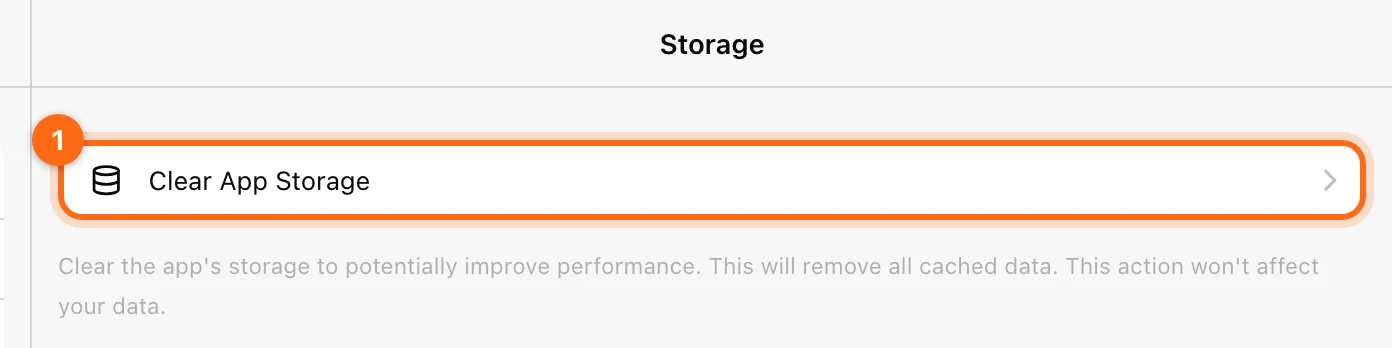
The app may describe this action as not affecting your data. That statement should be understood for data already stored on the service: an active or pending offline workout can still depend on local storage.
Check unsynced workouts first
Before clearing storage, finish any work you want to keep, inspect Training → Pending workouts, and confirm uploaded sessions in History. Save a pending record as JSON if it needs support attention.
When to use it
Consider clearing local storage only after basic connection, refresh, context, and setting checks, and after preserving unsynced work. It can help with stale cached state, but does not fix a wrong athlete assignment, an expired plan, or a device in an incompatible mode.
After the reload, reconnect the device if necessary and verify organization, athlete selection, units, and local/cloud settings before recording.
For a blank or slow page, begin with App troubleshooting.
Configure training settings
Control local versus cloud settings, rest and idle timers, wellness prompts, default prescriptions, manual 1RM, and modality-specific feedback.
Manage the organization
Set workspace identity and default units, review the subscription, transfer ownership, or understand leaving and deletion.