Set units, language, and appearance
Understand organization defaults and personal unit overrides, then customize theme, language, name order, layout, and keep-awake behavior.
Units and appearance are in different places. Start with the preference you want to change rather than searching for one general profile-settings screen.
Set the measurement system
| Scope | Location | Who changes it |
|---|---|---|
| Organization default | Organization → Metric System | The Owner. |
| Personal override | Account → Override organization’s defaults → Metric System | The account holder. |
Choose Metric (kg, cm) or Imperial (lbs, ft/in). Clear the personal override (the x next to it) to inherit the organization’s default. Check the label beside a numeric field whenever entering load, body weight, height, or sprint distance.

Display conversion does not turn the original lift into a different workout. If two devices show a different number, compare the units before assuming one recorded the wrong load.
Open Display & Appearance
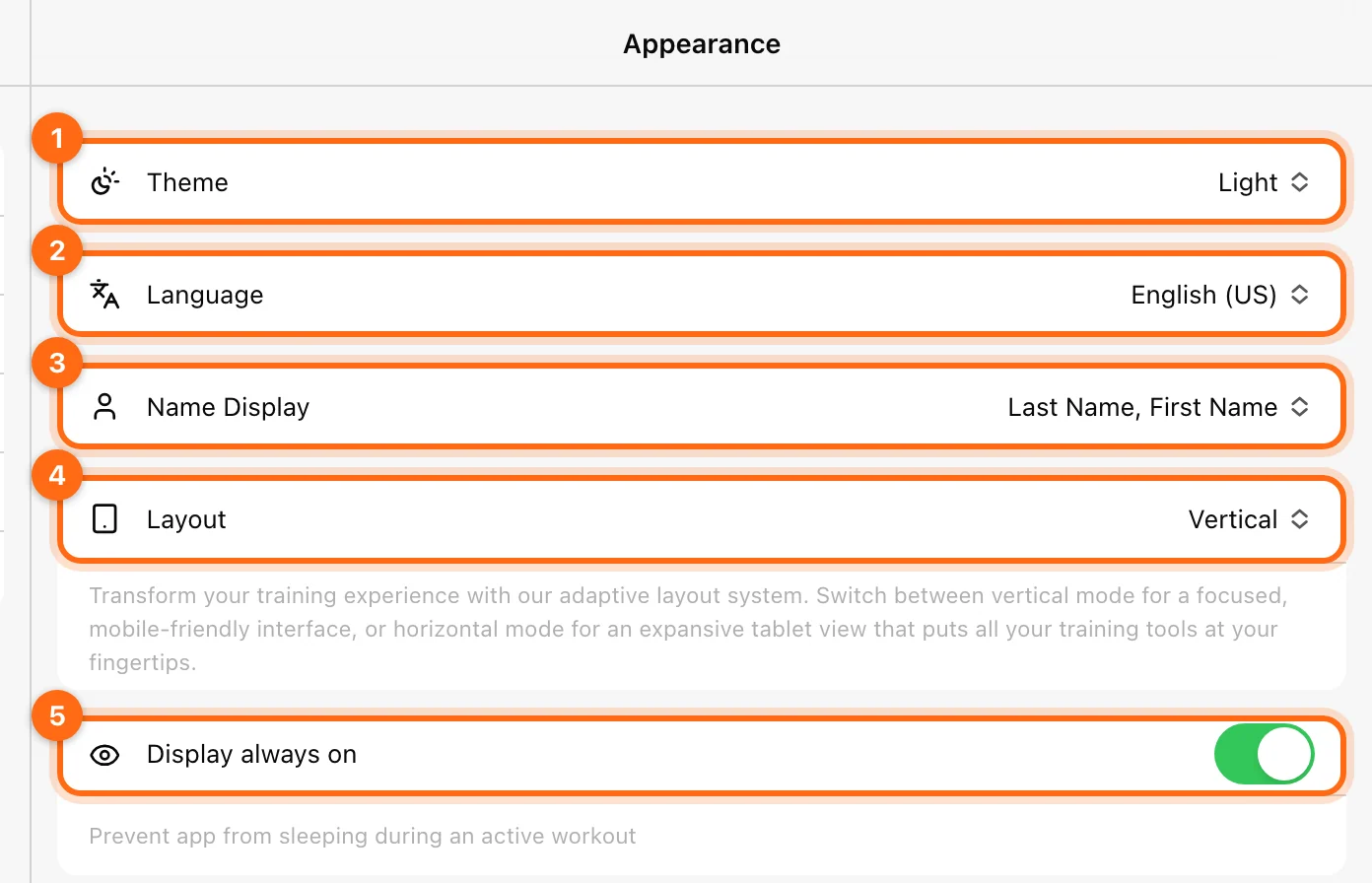
Use Settings → Display & Appearance: on web or desktop, the sidebar cog; on mobile, More (...) at the bottom right, then Settings. Changes such as theme and language apply instantly through their controls, without a separate general Save button or an app restart.
- Theme: choose Light, Dark, or System. Dark suits low-light rooms, Light brighter surroundings. Switch as often as you like.
- Language: choose from 12 languages: English (US), English (GB), Español, Français, Deutsch, Italiano, Português, Русский, 日本語, 한국어, 中文, and Hindi. These help-center guides are available in English, Spanish, French, and Italian; use the language menu in the sidebar.
- Name Display: choose last-name-first or first-name-first ordering.
- Layout: choose the available Horizontal/Vertical layout on a large enough screen.
- Display always on: prevents the app from sleeping during an active workout, so a screen timeout does not interrupt your session, where the device supports it.
On an iPad
On iPad, Vitruve offers a desktop-like experience optimized for landscape (horizontal) orientation: you navigate menus and manage athletes with the same layout as on the computer. It suits on-the-go coaching and detailed analysis. Use Layout to switch between Horizontal and Vertical.
Change layout
Layout controls are not offered on every small screen. Changing the layout asks to restart the app. Finish and sync your current work before accepting a restart, then check your athlete and device context afterward.
The layout option is about presentation; it does not change your membership role, exercise prescription, or organization’s unit defaults.
If the screen keeps sleeping
Check Display always on in the installed app, the system’s display/power behavior, and whether the app stayed in the foreground. Keep-awake support varies by platform; a browser tab and an installed mobile app may behave differently.
If preferences seem different on another device
Check the same organization and personal account, then compare local display preferences. Use Cloud is the training-settings sharing control, not a promise that all appearance preferences are the same on every device.
For audio, timers, and measurement preferences, use Training settings.
Manage your account
Update personal details, change your password or login email, record body measurements, accept invitations, sign out, or delete your account.
Configure training settings
Control local versus cloud settings, rest and idle timers, wellness prompts, default prescriptions, manual 1RM, and modality-specific feedback.