Create and use leaderboards
Choose an exercise, metric, athletes, and time view for meaningful live or historical comparisons.
Leaderboards compare selected athletes for a configured exercise and metric. Use them to promote friendly competition and keep athletes engaged: athletes can follow their ranking on a shared screen while the session is in progress.
Open Leaderboards in Coach Mode with a team plan that includes the feature, such as Lite or above. On web it is in the left-hand menu. On mobile or tablet, tap More (three-dot icon at the bottom right) and scroll to Leaderboards.
Owners and Coaches create, edit, copy, and delete leaderboards. The plan limits how many you can create:
| Plan | Saved leaderboards |
|---|---|
| Lite | Up to 2 |
| Basic | Up to 4 |
| Elite | Up to 15 |
| Professional | Up to 50 |
Create a leaderboard
- Open Leaderboards and select +.
- Enter a clear Name, for example “Female Basketball – Squat power”.
- Under Select a metric, choose the Metric you want to compare, such as a velocity, power, or load metric.
- Under Select an exercise, choose the exact Exercise.
- Use Add athletes to include the intended Athletes.
- Select Save and open it.
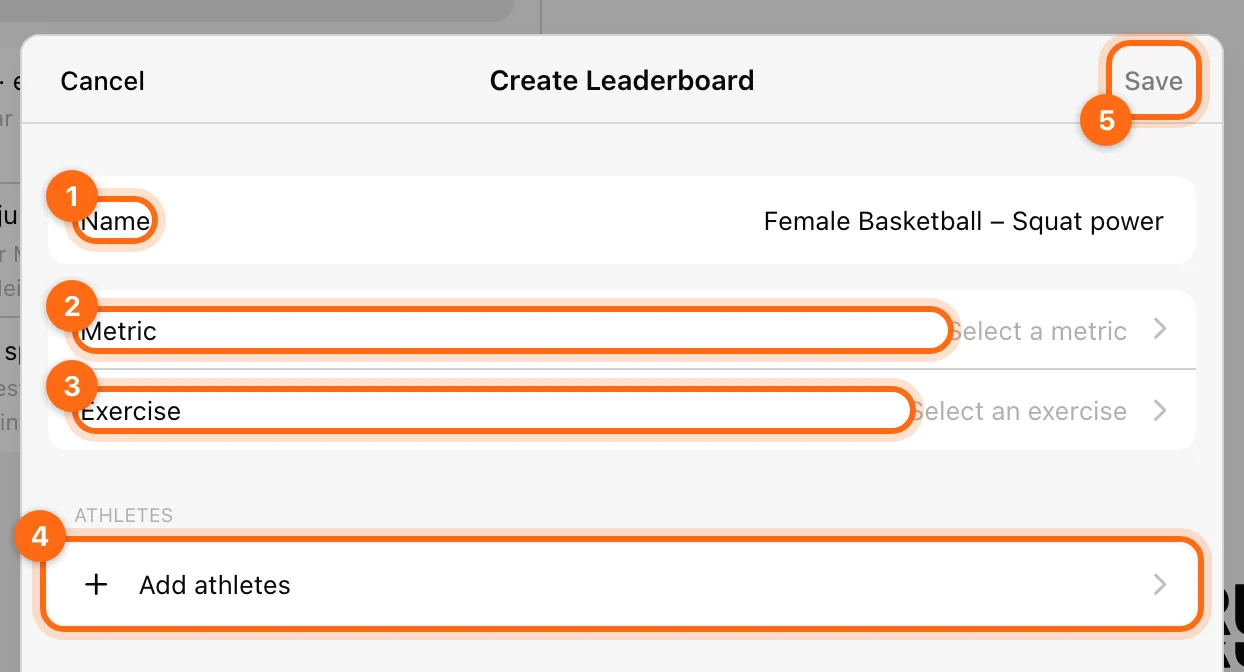
The leaderboard is live as soon as it is saved. The name should describe the comparison so people do not mistake velocity, load, and power for the same ranking.
Choose the time view
| View | Data context |
|---|---|
| In progress | Workouts currently in progress (the live view). The footer reads Workouts in progress. |
| Today | Completed workouts from today. |
| Week | Completed workouts in the week view. |
| Month | Completed workouts in the month view. |
| All | Available all-time performance context. |
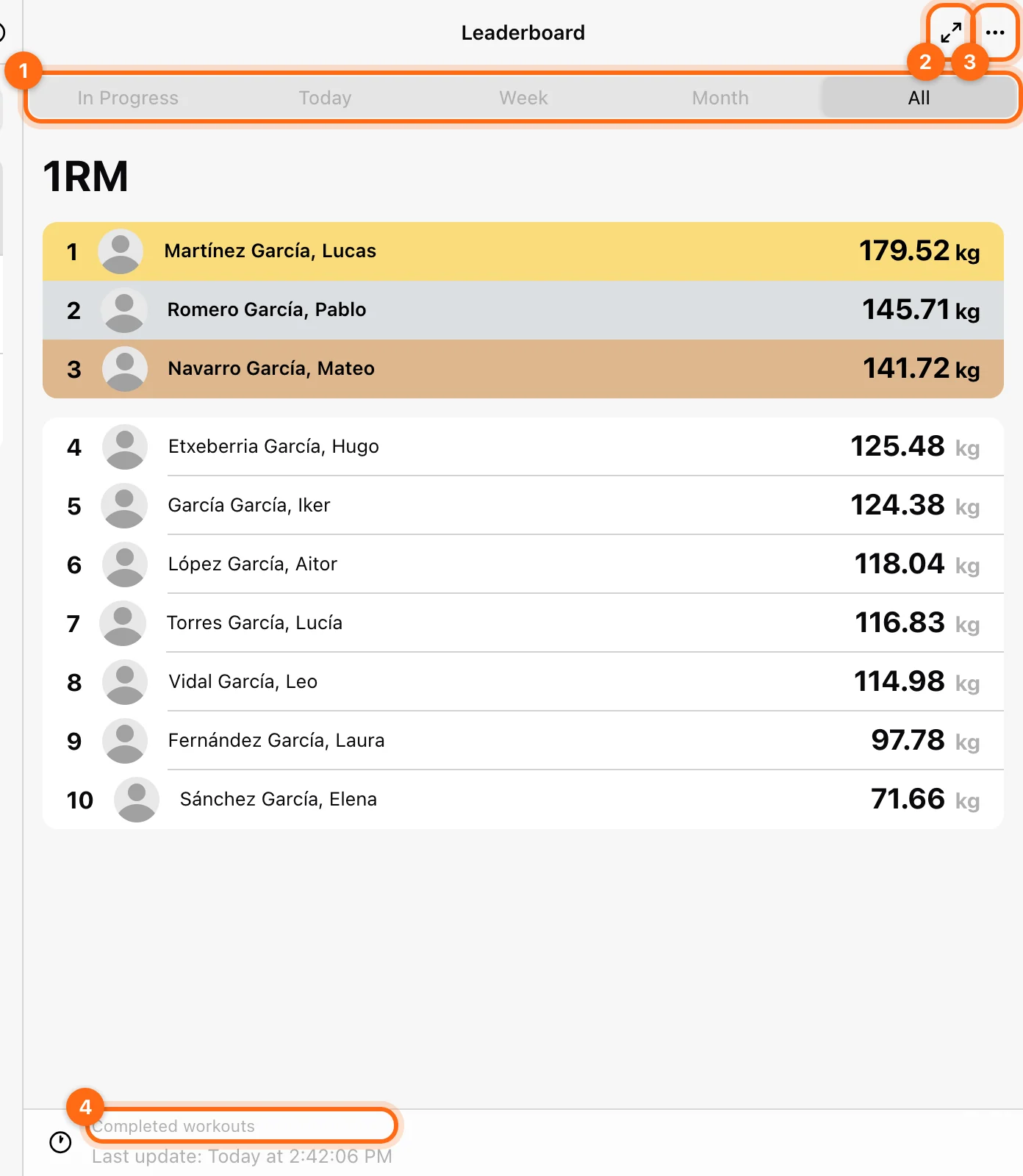
The time view is selected on the detail page, not in the creation form. Today, Week, Month, and All read Completed workouts, as their footer states.
The views refresh automatically: In progress about every 20 seconds, and the completed-workout views about every 3 minutes. The header shows Last update: Today at with the time of the latest refresh. A new set therefore does not necessarily reorder the display at the exact instant it finishes. Older help articles describe a 15-second live refresh; the current app refreshes the live view every 20 seconds.
Read the ranking carefully
The current saved-leaderboard flow ranks descending by metric value. Its configuration does not have a sort-direction field. This works naturally for larger-is-better metrics such as power, but a timing metric needs care: lower reaction or sprint times can be better, even though a descending display puts larger values first.
Compare the same exercise and metric across athletes. A faster velocity at a lighter load is not automatically a stronger performance than a slower velocity at a much heavier load.
Display or manage it
Use the fullscreen control for a larger gym-screen display. Top-three styling highlights the leading values in the configured ranking.
The ⋯ menu provides Edit, Create a copy, and Delete:
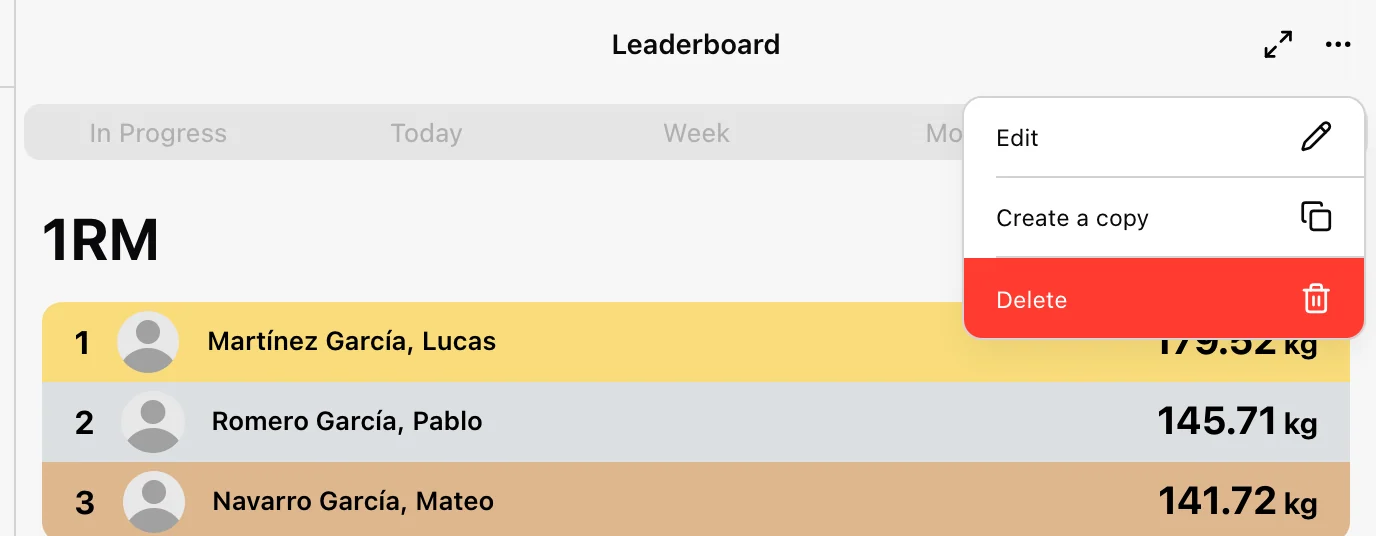
- Edit opens Update Leaderboard with the same name, metric, exercise, and athlete fields.
- Create a copy opens Clone leaderboard; enter a name for the copy and select Save a copy. Review the copied athlete list and metric before treating a clone as a new competition.
- Delete asks you to confirm; deleting a leaderboard cannot be undone. It removes the ranking configuration, not the athletes’ workouts.
“There are no athletes in this leaderboard” means the saved configuration has nobody selected; use Edit to add athletes.
Get more from leaderboards
- Create separate leaderboards by team, gender, or training block for more specific competition.
- Use different metrics, such as peak velocity or power output, to spotlight different strengths.
- Keep the In progress view on a gym screen so athletes can check their ranking live and stay focused through the session.
Where available, the app’s Security passcode can protect access to the leaderboard screen.
If an athlete or performance is missing
Check leaderboard membership, exercise identity, metric, time view, active-versus-completed context, and upload status. A rep recorded offline may not appear in another device’s In progress view until it syncs.
If the athlete is not selectable at all, check the Owner’s coach assignments. If the saved result is missing everywhere, follow Missing workout troubleshooting.
Create equations and manage 1RM
Build an exercise-specific load–velocity profile, select the active equation, or enter a manual 1RM for percentage loading.
Export workouts and measurement data
Export a History date range, download one workout, email one set, or save a continuous monitor CSV without confusing their scopes.