Use Vitruve Intelligence
Ask useful app and data questions, edit a plan with the assistant, and review proposals before keeping changes.
Intelligence is Vitruve’s in-app assistant for app guidance, planning, and analysis of the data available in your workspace. Current access requires the Owner role and an organization plan that includes the AI assistant, such as Professional.
Open the assistant
Use Intelligence in the navigation for a full-page conversation. On supported wide-screen Builder pages, open the assistant side panel to work with the entity already on screen.
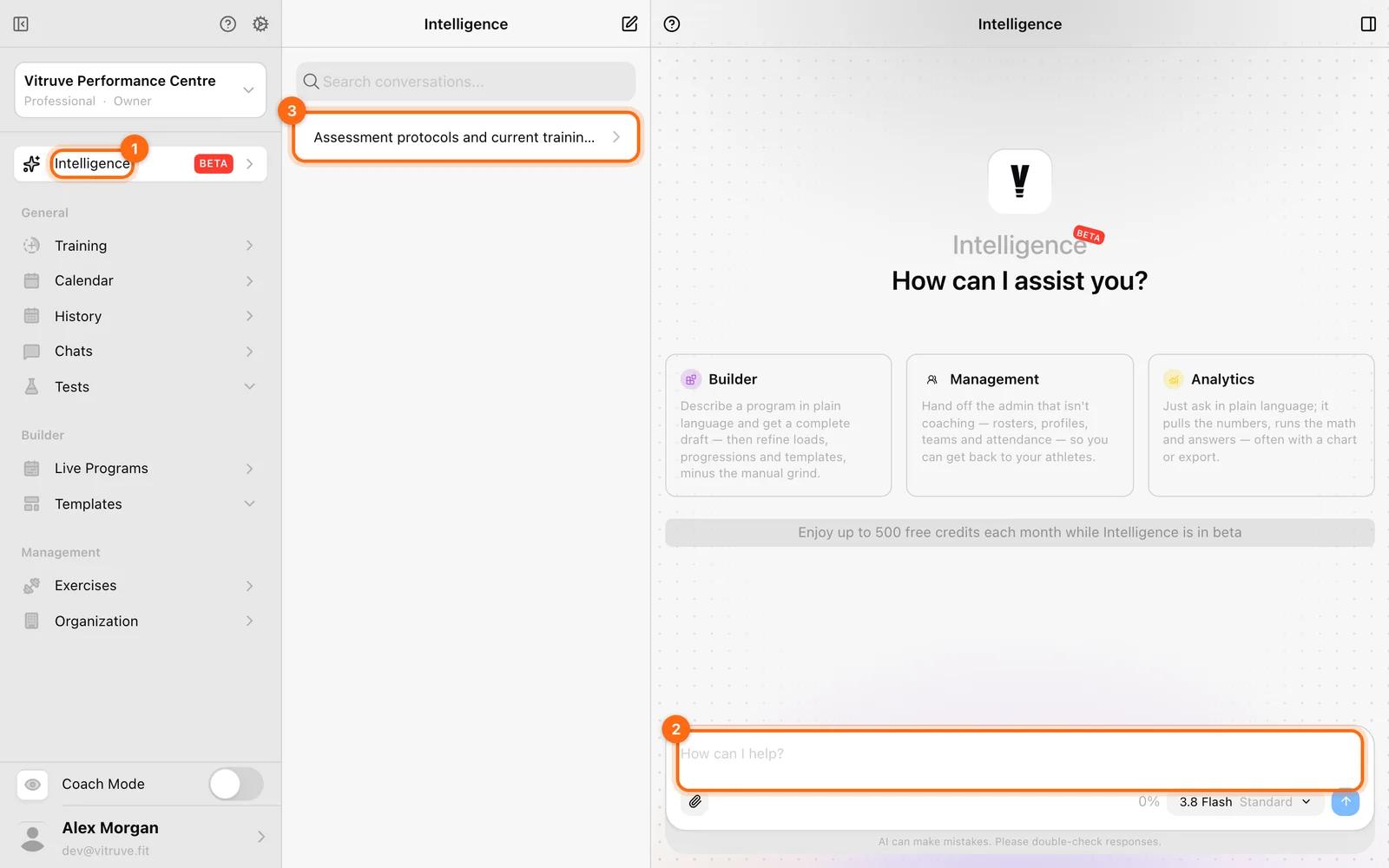
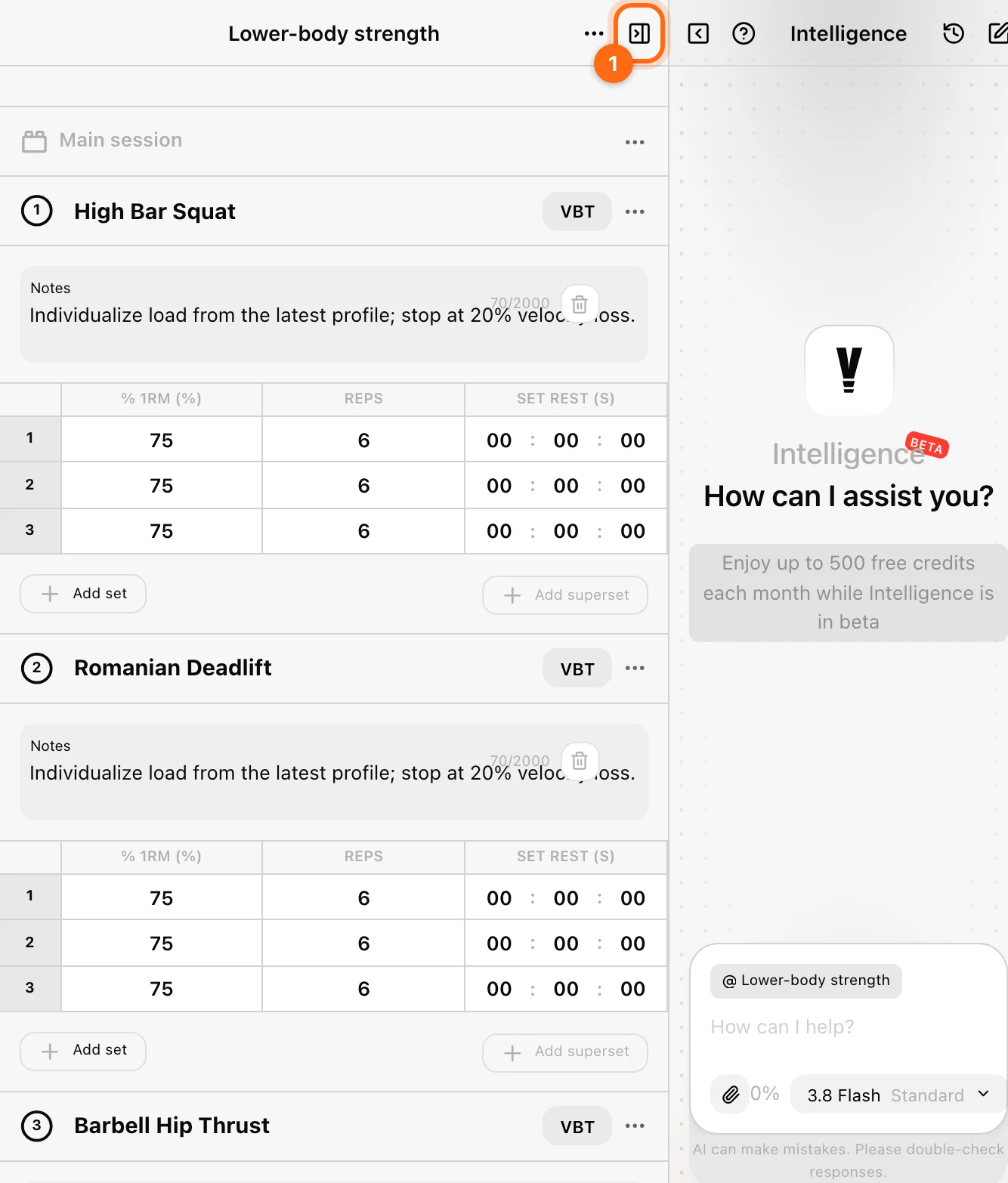
On a smaller screen, use the full-page assistant when the Builder panel is not available. A missing panel is not proof that the assistant has been removed from your account.
Ask a useful question
Include the athlete or team, exercise, metric, and time window when asking about data. Good examples:
- “How do I finish a workout without discarding it?”
- “Compare Jordan’s back-squat mean velocity at the same load over the last four weeks.”
- “Show which selected athletes completed their scheduled workouts in the last seven days.”
- “In this workout, change the main lift to four sets of five and keep the warm-up unchanged.”
These are example prompts, not claims about data in your organization. The assistant can only work with available records and permissions. In Coach Mode it can use your permitted roster; personal mode scopes questions to your own context.
Prefer your own AI assistant?
Owners and Coaches can also let Claude, ChatGPT, Cursor, or Claude Code read the organization’s data, read-only, from Settings → AI connectors. See Connect AI assistants. Intelligence remains the way to edit plans with an assistant.
Understand tool activity
The conversation can show activity such as Loading knowledge base… and Loaded knowledge base for app guidance, or data lookups for athlete and training questions. This helps you see which references or records support the answer.
If it asks for a time period or which of two similar names you mean, answer before relying on the result. A narrower question is usually easier to verify than an open-ended “How is my team doing?”
Review a Builder proposal
In Builder mode, proposed changes appear in the editor with a Review changes card:
- Accept: keep the proposal and persist it.
- Revert: reject the proposal and return to the earlier state.
Inspect exercise choices, set counts, targets, and scheduling before choosing. Do not treat a visible preview as an already approved plan.
Manual editing while a proposal is pending
Editing the Builder yourself while a proposal is pending accepts the preview as the basis of your edit. Choose Revert first if you want to edit the original instead. Clearing the conversation rejects a pending proposal.
Use generated outputs
When the assistant produces a chart or downloadable report, open it and check the athlete, organization, metric, and dates. File generation does not assign a program unless the assistant also performs the corresponding program action.
The Builder review workflow applies to on-screen Builder proposals. Other assistant actions can have their own confirmation or tool approval—read the action shown rather than assuming every request is just a preview.
If a request cannot complete
- Check the role and plan in the selected organization.
- Confirm Coach Mode for permitted multi-athlete analysis.
- Use a time range your organization can access.
- Review any tool error and the usage/credit information shown in the app.
- Stop a response if you want to reframe the request, then retry with a clearer scope.
For a persistent error, include the conversation context and message in your support report, without copying private credentials.