Record reaction workouts
Choose Light Chase, Go/No-Go, or Choice, configure duration and difficulty, record events, and review both response timing and accuracy.
Use Training → Reaction for a reaction workout. Choose a game, record one or more sets, and finish the workout into History. Reaction can also be part of a mixed Workout.
The organization needs Timing Gates access and compatible Vitruve Speed hardware. For the games as they run on the gates, see Reaction games on the gates.
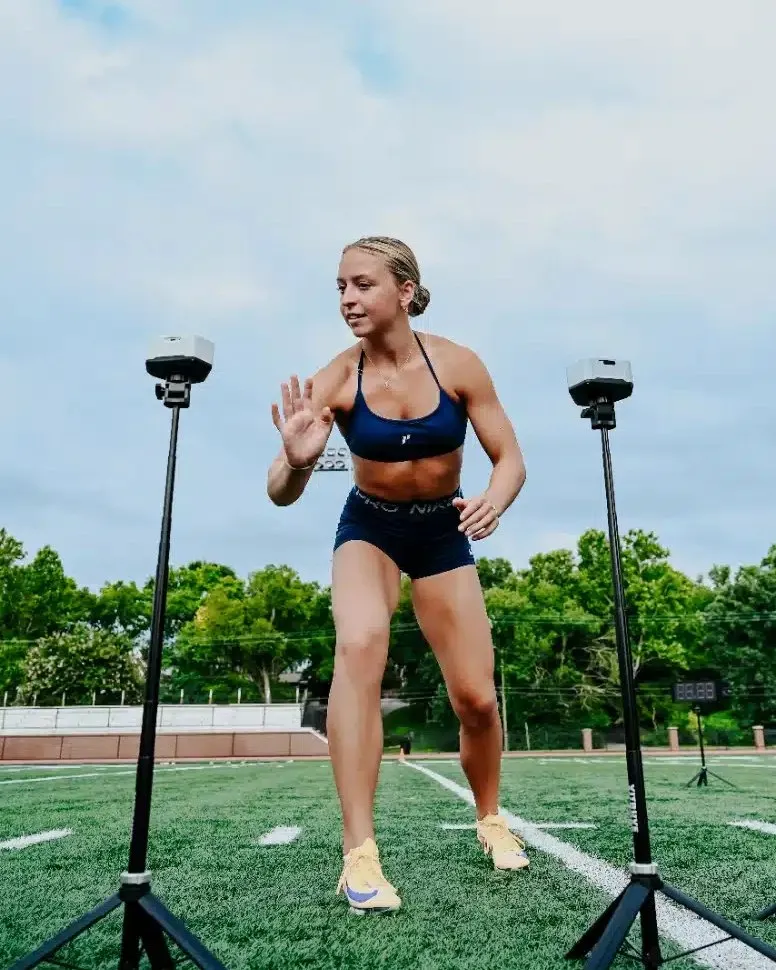
Choose the game
| Game | Athlete task | What to review |
|---|---|---|
| Light Chase | Respond to illuminated cues. | Reaction times and configured set/secondary metrics. |
| Go/No-Go | Respond to go cues and avoid trap/no-go cues. | Timing and accuracy. |
| Choice | Make the correct response among the presented cues. | Timing and accuracy. |
Go/No-Go can run with one available gate; Choice needs at least two. Read the readiness message for the actual game and connected topology.
1. Set the recording context
Check organization, athlete, active Speed device, and selected reaction Exercise. The focused picker offers reaction-compatible exercises.
There is no Load field in this reaction-game flow. A reaction game is bounded by Duration, not by a prescribed lifting rep count.
2. Choose Duration
Select Duration and choose the game window in seconds. It determines how long the game runs. The number of events fitting that window can vary; it is not a promise of a fixed number of hits.

Keep duration consistent when comparing total events or accuracy across attempts.
3. Configure Go/No-Go difficulty
Open the reaction settings. Difficulty presets set No-Go probability:
- Easy: 15%.
- Medium: 30%.
- Hard: 45%.
Enter a custom probability if needed. This determines how often the cue is a trap to avoid; it does not directly specify a target reaction time.

Check Use Cloud before changing settings shared with other stations.
4. Start and wait for the cues
Select Start once. The app sends the start configuration to the gates, then displays the Get ready… countdown before the game board opens.

If it reports Could not start the workout — The gates did not accept the start command, check connection and try again. Repeated taps during arming/countdown do not create useful extra attempts.
Follow the chosen game’s cue rules. Waiting for the first cue or Watch the gates is expected before the first event arrives.
Exercise, Duration, and relevant settings are protected during the countdown/game. Resolve the run before changing athlete or setup.

5. End or stop a game
Let the configured game run, then use the recording display’s Finish or the available automatic completion behavior. The captured events become a set in the reaction workout.
If you leave an unfinished game, Stop game offers Save, Discard, and Cancel for the current recorded events. This decision concerns the game/set, not the entire workout’s footer Discard.
6. Review speed and decisions
Expand the set to see its event chart and rows. Light Chase reads response timing. Go/No-Go and Choice also record event outcomes and game accuracy.
Lower reaction time can represent a faster response; a fast attempt with incorrect decisions is not equivalent to a clean attempt. Review both quantities and the game settings before interpreting progress.

Go/No-Go and Choice pin their primary and set metrics for the scored game. Their settings therefore do not offer the same free metric selection as Light Chase. That is protocol behavior, not a broken settings save.
7. Continue and finish the workout
Start another set only after the current one is saved/resolved. Use Summary for Name/RPE and the whole session overview, then the workout footer’s Finish. In Coach Mode, choose Only this athlete or All athletes before confirming.
Find the completed reaction workout in History once uploaded. There is one workout record with its exercises and sets, not a separate results object elsewhere.
If Start or results are missing
Check exercise, active compatible device, available gate count, current countdown/running state, and feature access. For missing completed work, inspect Pending workouts on the original recording device before repeating the session.
Record sprint workouts
Configure the recorded course, understand device-started runs and partial laps, then save sets and finish the sprint workout.
Set velocity feedback and automatic set finishing
Understand velocity loss, Top velocity, Velocity Zone, voice feedback, and the separate idle timer that finishes a set.