Create and reuse templates
Learn what each template level stores, how to copy it, and why saving a template does not assign a workout.
A template is planning material you can reuse. It is not a completed workout, and saving one does not place it on an athlete’s calendar.
Templates are the foundation of structured training in Builder. You can build anything from a single exercise to a multi-phase program, and each level fits inside the next:
Exercises → Supersets → Blocks → Workouts → Phases → Programs
New to Builder? Follow Build your first program to go through every level in order.
Pick the smallest useful level
| Template | What to save | Example name |
|---|---|---|
| Exercises in Templates | One exercise with a set prescription table. | “Bench — 4 × 5, velocity target” |
| Supersets | Several prescribed exercises performed together. | “Push / pull pair” |
| Blocks | A reusable section of a session. | “Lower-body warm-up” |
| Workouts | A complete session made of blocks. | “Upper body A” |
| Phases | A weekly schedule over a defined number of weeks. | “Strength — 4 weeks” |
| Programs | A sequence of phases. | “Pre-season strength” |
These are example names, not preloaded plans. Use names your staff and athletes can recognize.
What each level is for:
- Exercises are the basic building unit: a movement with its name, notes, VBT designation, and detailed prescription (load, reps, RPE, and so on). You can reuse one exercise template across supersets, blocks, and workouts.
- Supersets combine two or more exercises performed one after another. You can mix VBT and non-VBT exercises. They suit complementary pairs and efficient circuits.
- Blocks group exercises or supersets around one goal or body area, such as "Lower Body Power Block". They make programming modular.
- Workouts are one complete training day. Combine several blocks, add warm-up or accessory work, and include rest times and instructions.
- Phases spread workouts across several weeks, such as a 4-week hypertrophy phase. You can change each phase's length, volume, and intensity separately.
- Programs are the highest level: several phases in one roadmap. Assigning athletes and dates happens in a live program, which then shows the workouts in the calendar and tracks progress.
Create a template
Open Builder → Templates on web or More → Builder → Templates on mobile. Choose the level and use +. Enter the requested name, then complete its editor.
Creation dialogs differ by level: a block uses a small name prompt; an exercise or superset can open a fuller editor and exercise picker. Do not expect every template type to have identical fields.
Insert existing material
In a parent editor, use the relevant action:
- Add block template in a workout.
- Add phase template in a program.
- The exercise picker’s Supersets or exercise-template options inside a block.
- Load program template to load a whole program structure.
Loading a complete structure can replace what is already in the editor. Read the confirmation before replacing an existing plan.
Save useful work as a template
The contextual ⋯ menu provides Save as template or Create template where supported. Use it when a block, phase, or scheduled session you built inside a larger plan should become reusable library material.
The template you save is a reusable structure. It is not an automatic link that retroactively changes every previous use of similar content.
Copy, rename, and delete
Open the template’s header ⋯ menu:
- Edit name (for example Rename exercise or Rename superset): make its name clearer.
- Create a copy: create a separate variation.
- Delete: remove the selected template after confirmation.
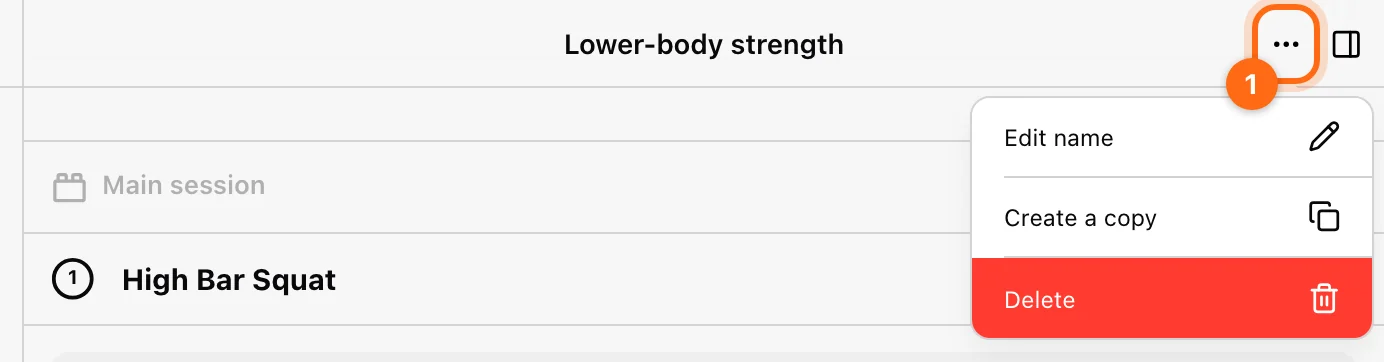
Use a copy when trying a variation you do not want to apply to the original. For live-program copies, athlete assignments are cleared; reassign them explicitly.
If creation is unavailable
Check your role, the organization’s plan, and its template limits. Creating different planning resources can have different limits; a program limit is not necessarily the same as a block or superset limit.
Next step
Build a complete workout, then schedule and assign it.
Build your first program
Go step by step from exercise templates to supersets, blocks, workouts, phases, and a program, then assign it so athletes see it in their calendar.
Build workouts, blocks, and supersets
Create a complete session, organize exercises into blocks, group supersets, and prepare it for training.