Prescribe sets, load, rest, and velocity
Use the set table and actual app parameter names to prescribe repetitions, percentage loading, velocity targets, and fatigue limits.
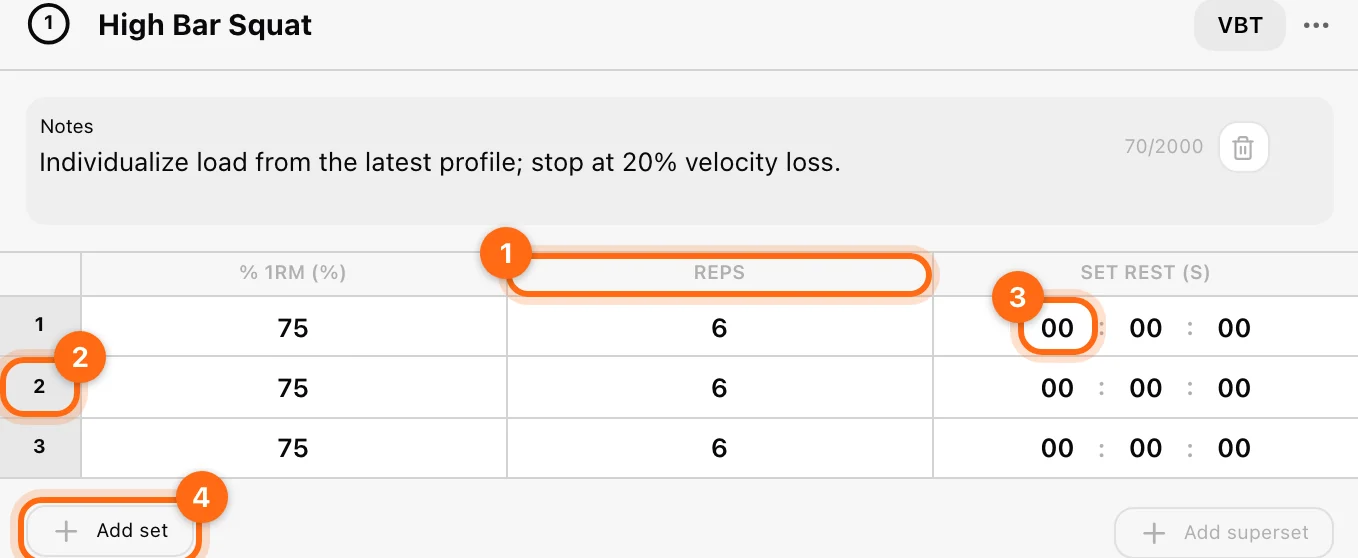
A prescription is a table: rows are sets, columns are parameters, and cells are targets. You can choose the columns needed for the exercise rather than filling every possible metric.
Choose the parameters
- Open an exercise inside a workout, block, or prescription template.
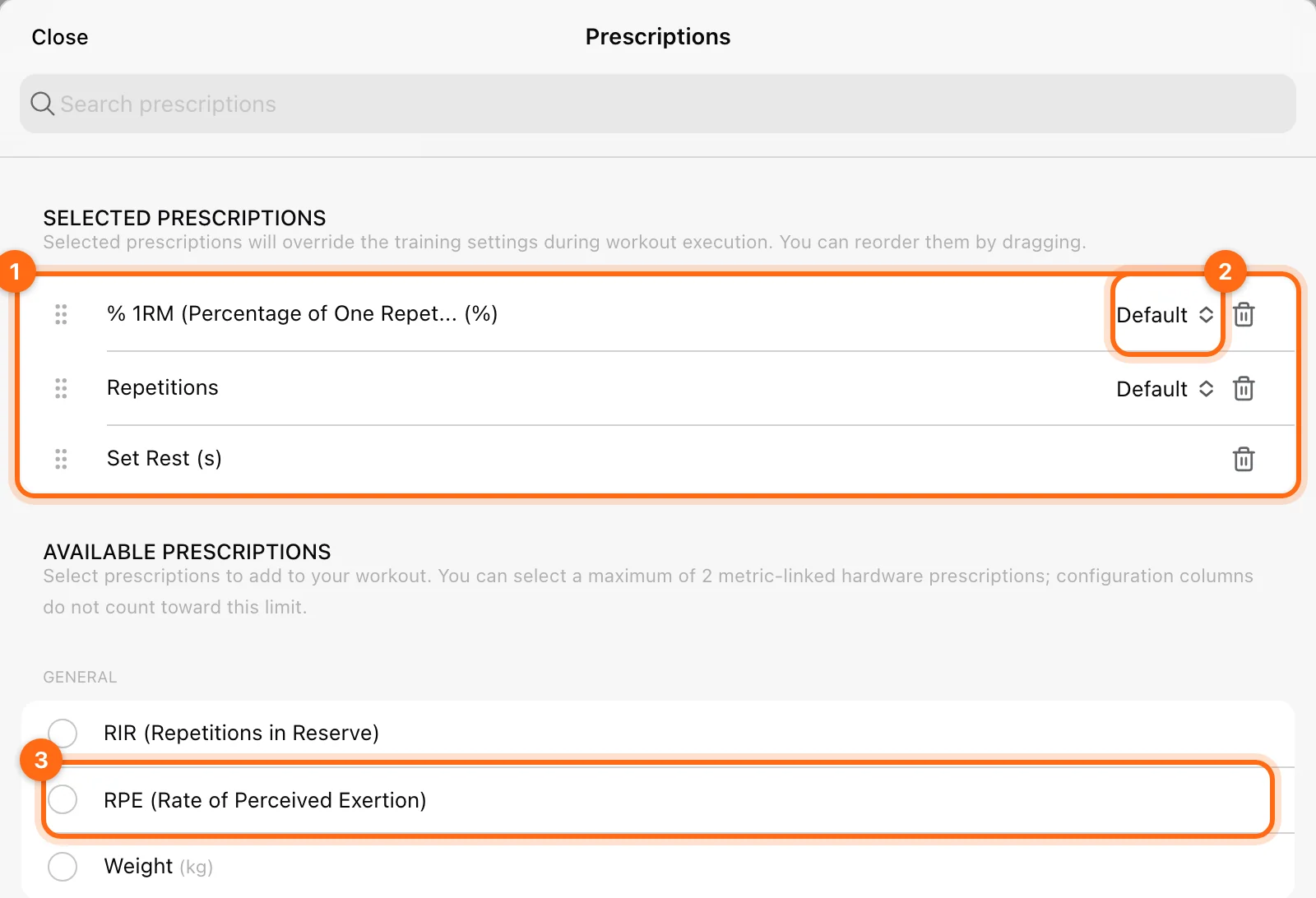
- Open its ⋯ → Prescriptions.
- Select the parameters you want from Available prescriptions.
- Reorder the active parameters if needed.
- Choose a supported mode for each parameter.
- Return to the table and enter the values for each set.
Common parameter names
| Goal | Use this parameter | Meaning |
|---|---|---|
| Set a rep target | Repetitions / Reps | Number of repetitions. |
| Prescribe an absolute load | Weight | Load in the displayed kg/lb unit. |
| Prescribe relative load | % 1RM | Percentage of the athlete’s available 1RM. |
| Prescribe effort | RPE or RIR | Perceived exertion or repetitions in reserve. |
| Rest between sets | Set Rest | Time in seconds. |
| Control movement cadence | Tempo | The tempo notation you prescribe. |
| Target bar speed | MPV, MV, or Peak Velocity (PV) | Velocity in m/s. |
| Limit velocity loss | Fatigue [MPV], Fatigue [MV], or Fatigue [PV] | Percentage using the named velocity metric. |
The catalog also includes time, distance, pace, speed, force, power, ROM, and other modality-appropriate parameters.
Default, Range, and Top
Where the parameter supports it:
- Default: one target value.
- Range: lower and upper target values.
- Top: a top-set/top-value prescription, available for supported metrics.
Not every parameter supports every mode. Set Rest and Fatigue use a single value. Review the available modes in the parameter selector rather than assuming a range is supported.
Add set rows
Select Add set to append a row. It copies the previous row’s values, so change any progression before assigning the exercise. Copying a row is a shortcut, not an automatic progressive-loading rule.
For example, if your plan calls for different loads in sets two and three, edit those cells after adding the rows.
Configure VBT targets correctly
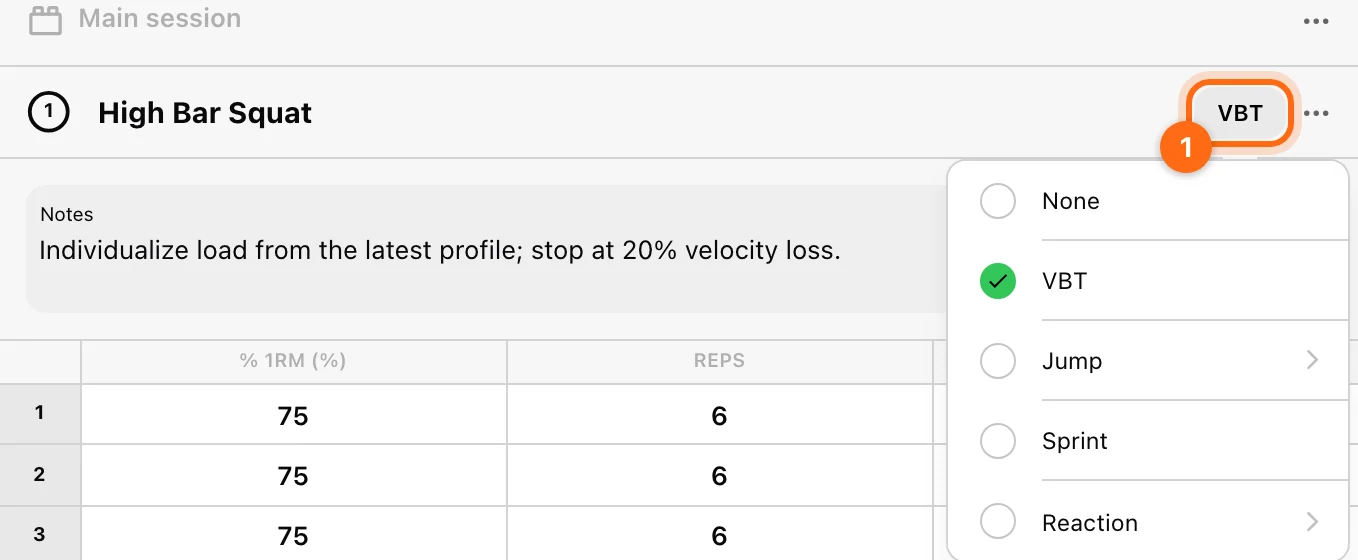
Set the chip next to the exercise name to VBT to enable velocity parameters; its menu offers None, VBT, Jump, Sprint, and Reaction. The prescription selector limits compatible VBT parameters:
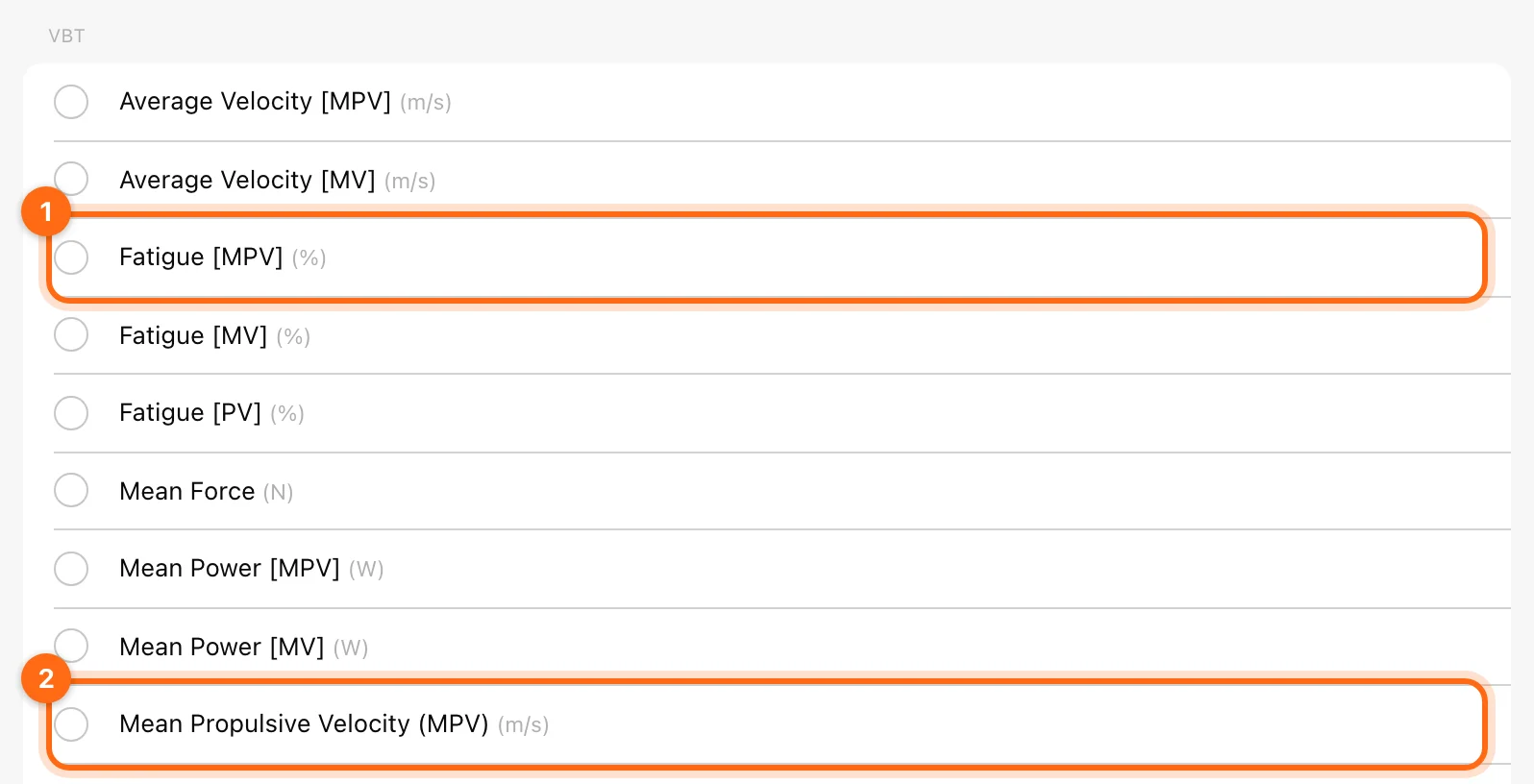
- A maximum of two VBT prescriptions per exercise.
- The VBT prescriptions must use the same metric.
- A Fatigue prescription conflicts with a velocity Range prescription; the app asks you to reset the conflicting choice.
An MPV target plus Fatigue [MPV] is consistent. Mixing an MPV target with Fatigue [PV] is not the same prescription.
Use the names shown in the app
There is no prescription column literally named “velocity zone” or “velocity loss”. Velocity targets use MPV/MV/PV; velocity loss uses Fatigue. The Velocity Zone setting is in Training Settings, where it controls live feedback.
Percentage loading needs a usable 1RM
The app can resolve % 1RM into a load using the athlete’s available 1RM. Check their equation or manual 1RM if the calculated load is absent or implausible. The athlete’s body-weight field is not a 1RM field.
Save as an exercise template
Use the exercise’s ⋯ → Save as template to reuse this prescription. Find it under Builder → Templates → Exercises. The movement itself still belongs to the separate library under Management → Exercises.
Check the athlete’s view
Load the workout from Training or preview the scheduled session. Confirm that the set table clearly shows the targets you intended. If ranges, fatigue, or a percentage load do not behave as expected, check compatibility and the selected athlete before changing the whole program.