Complete and manage wellness questionnaires
Record daily responses, enable the training prompt, review scores, and customize the questionnaire.
Wellness questionnaires record an athlete’s own responses to questions such as sleep, fatigue, stress, soreness, and mood. Coaches use these short check-ins before training to judge readiness and spot fatigue, stress, or recovery problems early. They complement measured training data; a questionnaire is not a device measurement.
Where to find it
- Web: Tests → Wellness in the left sidebar, or Training → Wellness Test.
- Mobile and tablet: More → Wellness, or Training → Wellness Test.
Owners, Coaches, and Athletes can complete wellness questionnaires on every plan. Older help articles say this needs an Elite or Pro plan. The current app does not have that restriction.
Complete a questionnaire
You can start a questionnaire in three ways:
- Open Wellness and use +.
- Select Wellness Test on the Training page. This is the label on the Training page; it opens a questionnaire.
- Answer it automatically at the start of a training session, when the training prompt is enabled (see below).
In Coach Mode, choose the intended athlete with the pencil before recording their response. With nobody selected, the app says Select at least one athlete to start the wellness test.
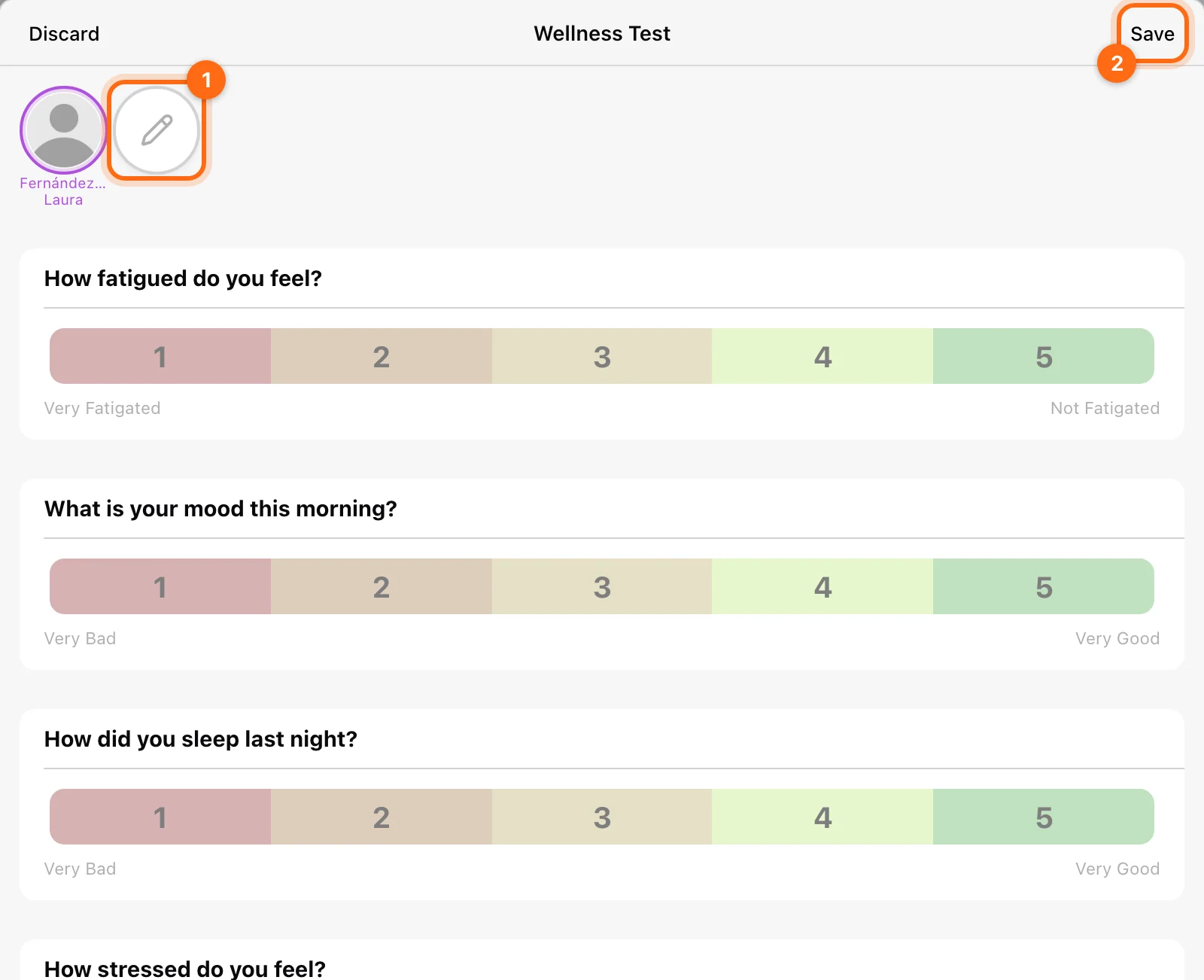
- Numeric questions use a 1 to 5 scale with a label at each end. Tap a number to answer, and tap it again to clear it.
- Text questions take a written answer.
Read the wording and labels for each question. Do not assume a high number always means “good” for every custom question. Complete the available scale/text fields and save or finish through the shown controls.
Show wellness at the start of training
Open Settings → Training, or the Training cog, and enable Wellness. Older help articles call this Show Wellness at Training. The wellness screen then appears at the start of each training session, as a Wellness tab before Workout and Summary, so athletes answer as they begin.
This is a training-display preference. Check Use Cloud to decide whether it is local to the station or shared with other cloud-enabled devices.
Review responses
Open Wellness, choose the intended athlete or coaching selection, and inspect the recorded questionnaires within your available date window. Use the detail view for the individual responses.
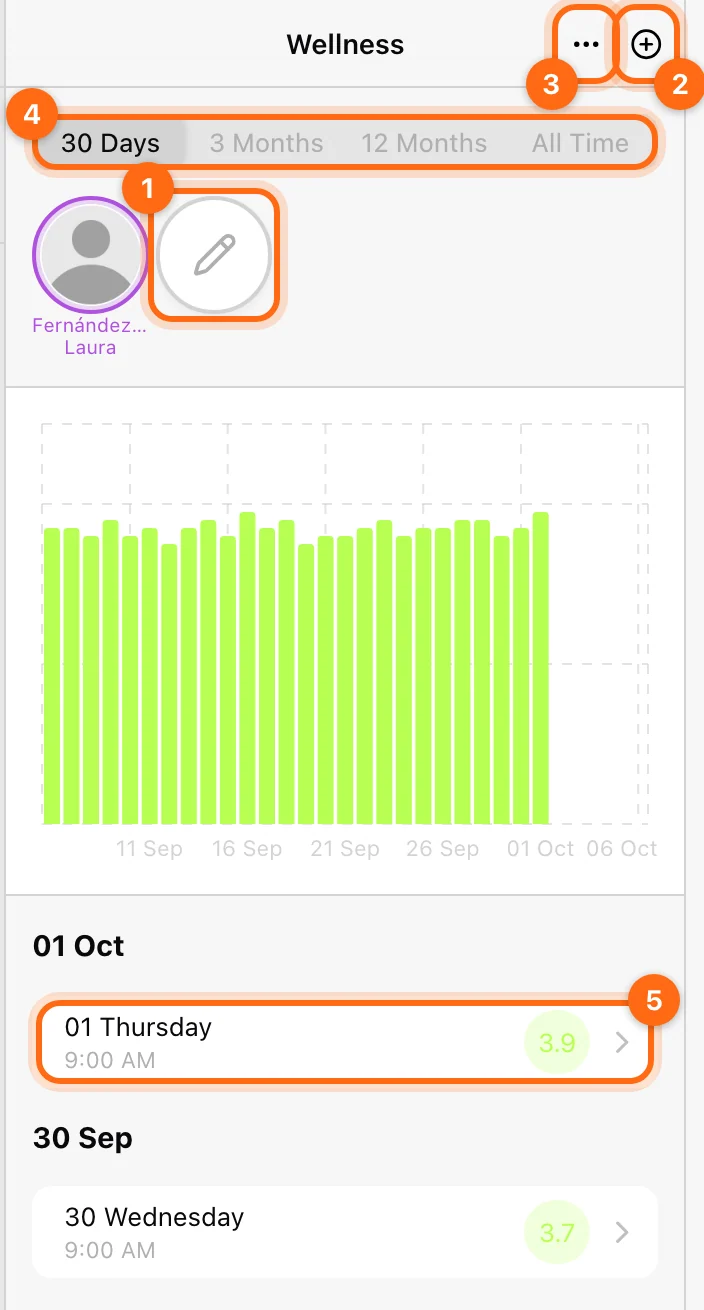
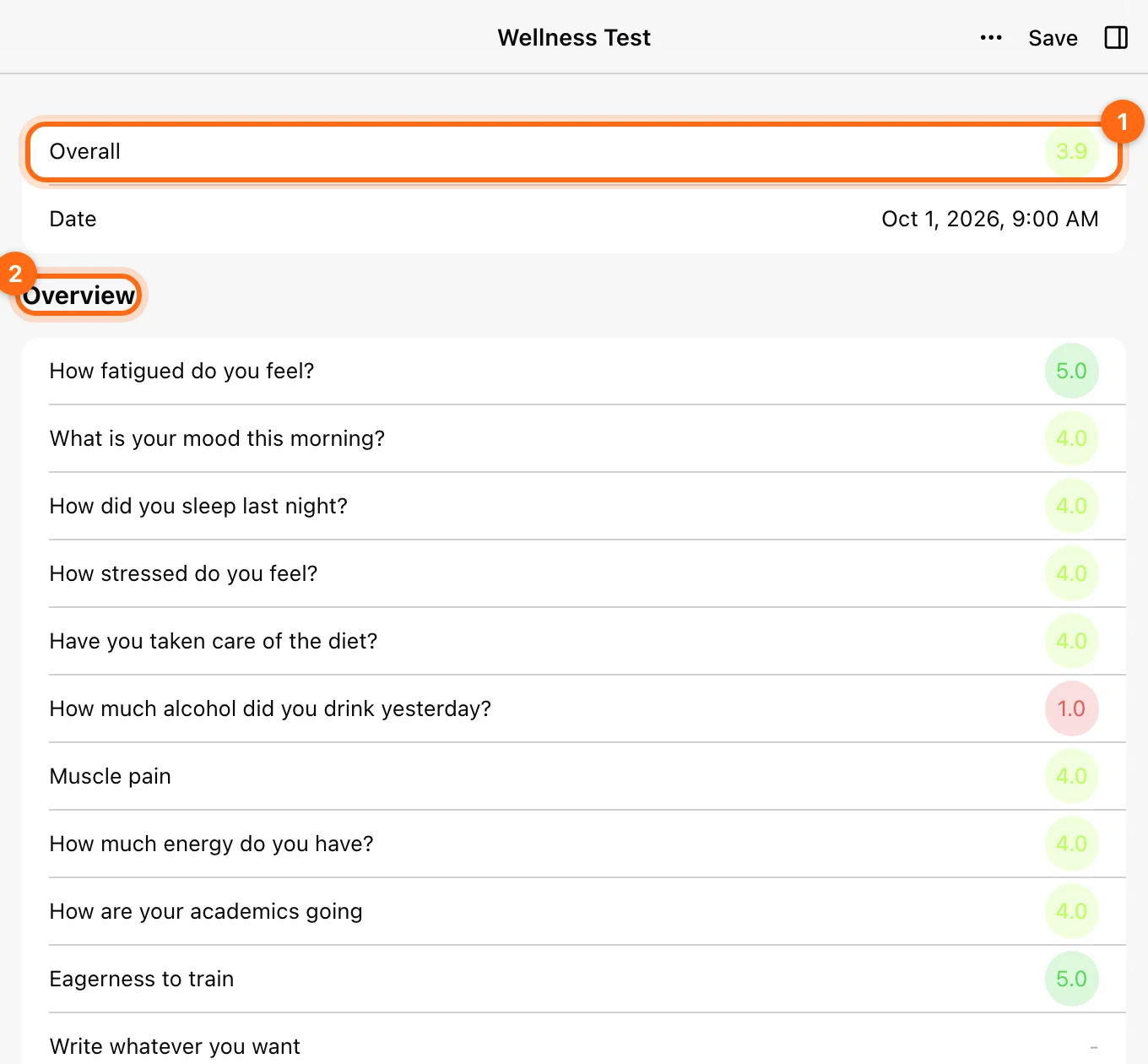
Compare the same questions and scale direction over time. If the template changed, a score with the same number may no longer represent the same question.
Customize the template
The organization has one questionnaire template, which you can adapt to your team's goals.
- Open Wellness and select the ⋯ menu, then Edit Template.
- Drag questions to reorder them.
- For a question you added, use its ⋯ menu to Edit or Delete it. Built-in questions have no menu; clear Display in test to hide any question without deleting it.
- Select Add New Question to add one at the end of the list. Choose Numeric (1–5 scale, with a Min. Label and Max. Label, such as "Very poor" and "Excellent") or Text (open answer), then enter the Question.
- Select Save.
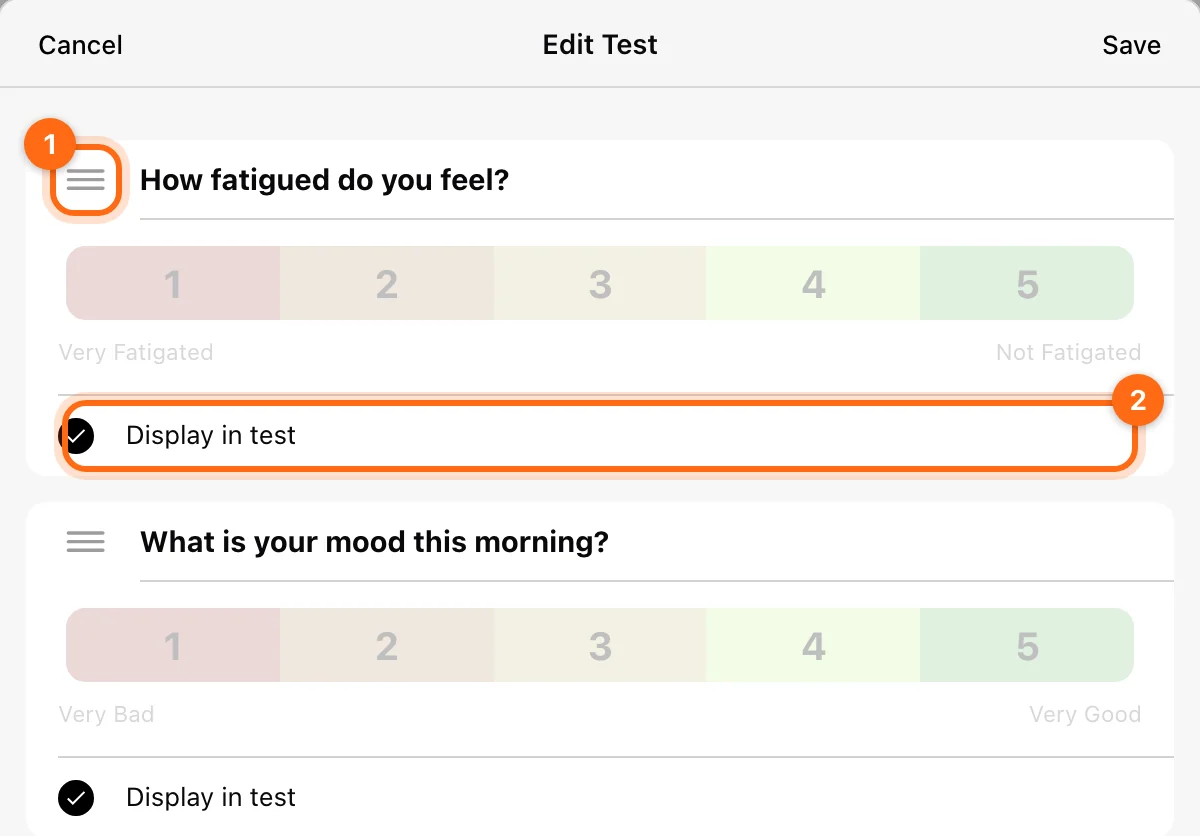
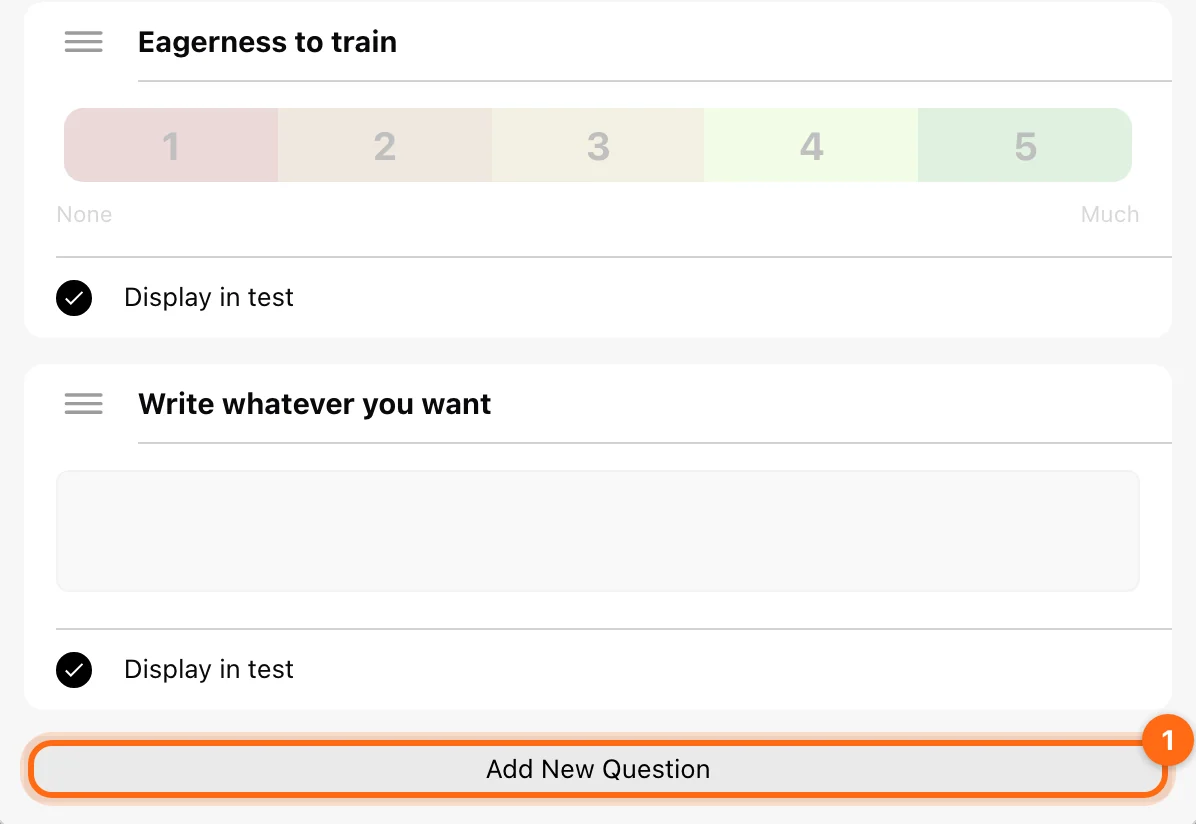
Make the question and scale labels clear before athletes complete it. A useful custom question describes one thing the athlete can answer consistently. Review the preview or next questionnaire after changing the template.
Template editing follows your available permission. Do not treat a questionnaire change as an account preference that only affects your own display.
Edit or delete a recorded response
Open the specific questionnaire and use its available edit/delete controls. Verify the athlete and date before removing a record. Deleting an entry is different from turning off the Wellness prompt for future sessions.
Offline responses
A questionnaire submitted without internet appears under Pending wellness tests until it uploads. Keep the app installed and signed in until it disappears from that list. See Offline and sync.
If wellness does not appear
- Check the Wellness training toggle on the recording device.
- Compare Use Cloud with the settings you edited.
- Check that the session started for the intended athlete.
- If reviewing older questionnaires, check the date window and organization.
Continue with Training settings or App settings troubleshooting.