Quick Tracking and Realtime Monitor
Choose between an immediate unsaved readout, a continuous metric stream, and a workout you want to keep.
These two Training cards are useful for immediate feedback, but they are not interchangeable with a saved workout.
Which flow should you choose?
| Flow | Best for | Saved result |
|---|---|---|
| Workout / VBT | Training you want attached to an athlete, exercise, and session. | Completed workout in History after finishing and syncing. |
| Quick Tracking | Warm-ups, demonstrations, or a quick velocity check. | No structured workout or History entry. |
| Realtime Monitor | Looking at continuous movement curves with a compatible V4/Force encoder. | Its own captured-data CSV export, not a replacement for a finished workout. |
Use Quick Tracking
Quick Tracking is the fastest way to see your numbers: no setup, just lift. Older help articles call it Quick Start mode. It is a display-only velocity mode, so you do not need to:
- Select an exercise
- Assign athletes
- Create a workout plan
It works with squats, bench press, deadlifts, or any other lift.
- Connect and activate the encoder from Training → Bluetooth. If you open Quick Tracking first, it shows Encoder disconnected. Connect the encoder, then try again.
- Open Training → Quick Tracking.
- Perform the movements you want to observe.
- Read the primary metric, rep chart, and selected secondary/set metrics. Velocity, power, and the live rep count update as you lift.
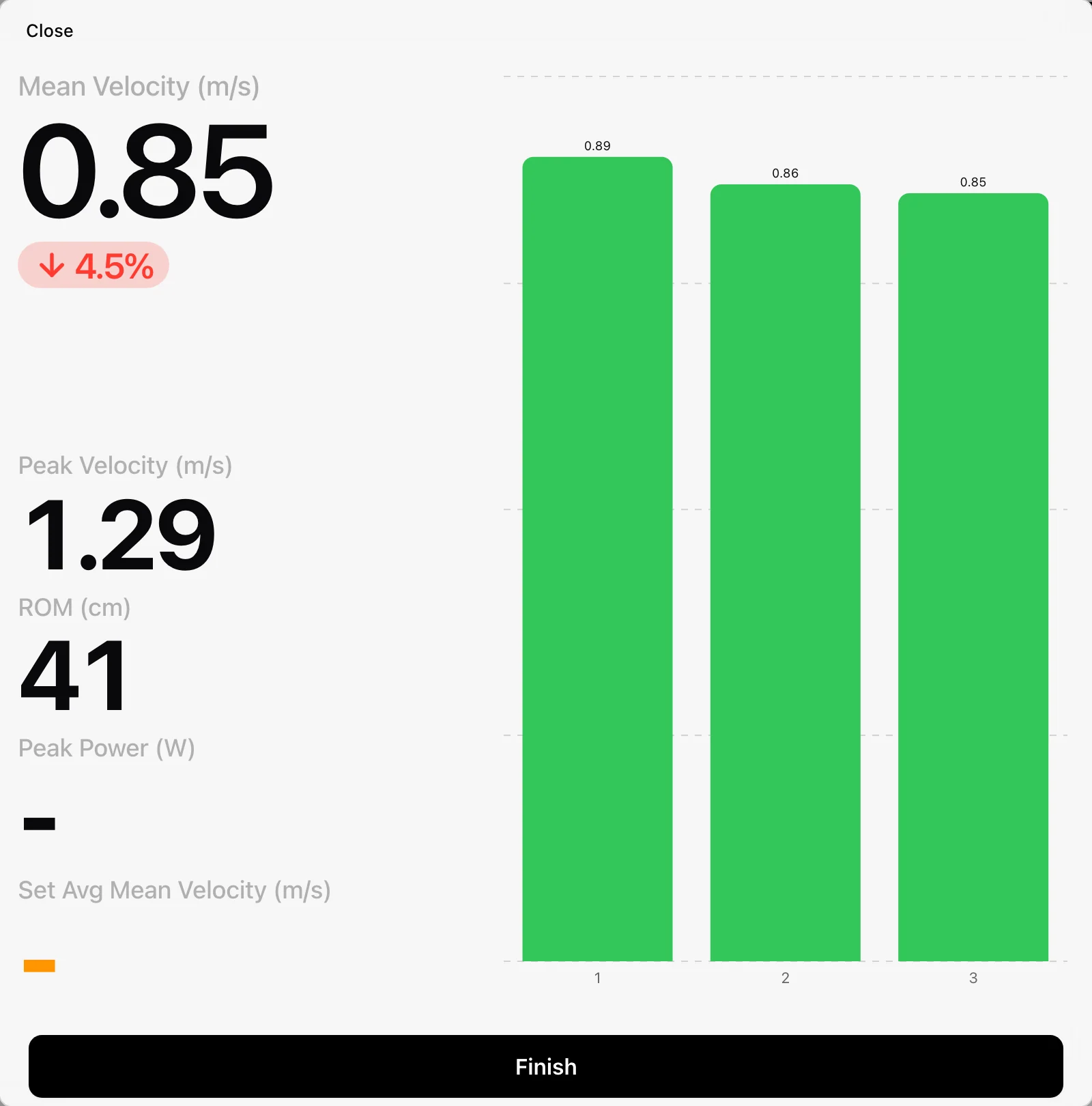
- The display has no settings of its own. To change which metrics it shows, close it and use the Training page's cog → VBT.
- Select Finish or close the display when done.
Nothing is saved as a workout
Quick Tracking does not attach results to an athlete/exercise prescription and does not create a History entry. When you end the session, its data is lost permanently. If you need the warm-up in your training record, record it through Workout or VBT instead.
Because no exercise is chosen, Quick Tracking uses the default 20 cm ROM filter rather than an exercise's own setting. Very short movements are not counted as reps.
Keep a set under 100 reps. Beyond that, the encoder reboots automatically to prevent data overload.
When Quick Tracking helps
| Benefit | Why |
|---|---|
| No setup | Good for warm-ups, drop-in sessions, or fast checks. |
| Real-time feedback | See velocity and power as you lift. |
| Any movement | Any lift or exercise, with no restrictions. |
Typical uses: warm-ups before a session, quick speed-strength checks, trying a new lift without logging it, and form checks with live metrics.
Use Realtime Monitor
Open Training → Realtime Monitor with a compatible V4/Force encoder active. The monitor can show continuous position/distance, velocity, acceleration, power, and force curves. Each chart displays its most recent 10 seconds.
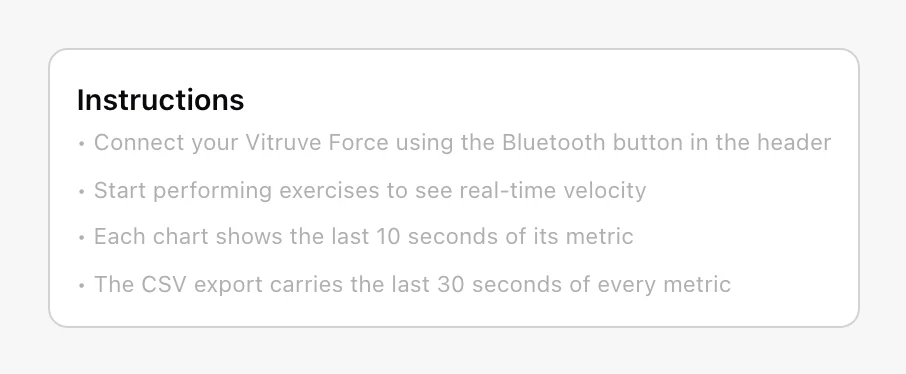
The monitor is not limited to jumps or lifts. Attach the tether to whatever you want to measure, such as a horizontal jump, a punch, a landmine press, or any custom movement. As soon as you pull the tether, live velocity, acceleration, position, force, and power appear.
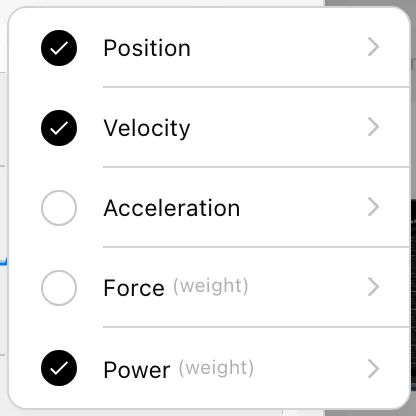
Check the load before interpreting calculated force or power. Select the metrics you want to view and capture the movement with the app open. These curves describe the continuous stream, which is different from a summarized mean or peak value for a rep.
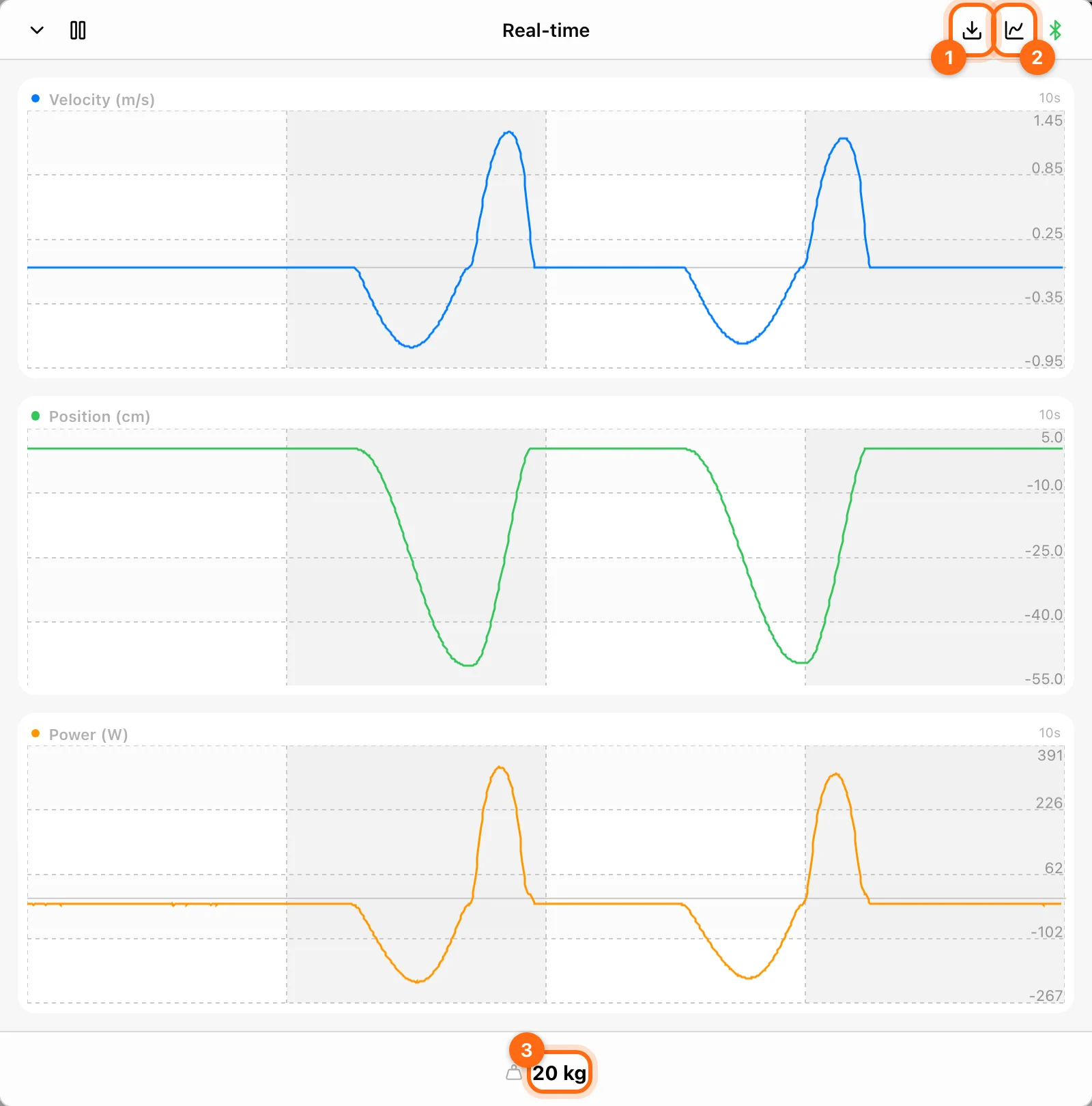
Export the monitor data
Use the monitor’s Download control to export the most recent 30 seconds of every metric to CSV. The file has a Time (ms) column and one row per recorded sample, roughly every 10 milliseconds, with velocity, acceleration, position, force, and power. That makes it suitable for detailed analysis on a computer. This is a rolling recent window, not a full-session recording. The export is immediate and does not use the asynchronous email workflow offered in History.
Save the file while the captured data is available. Do not expect to recover the same capture by searching History afterward.
If a display is empty
- Confirm the device is connected and active, not just remembered.
- Check that you are using compatible hardware for Realtime Monitor.
- Check Bluetooth permissions and, on web, browser support.
- Follow Connection troubleshooting before clearing app storage.
Next step
If you want to keep the training record, follow Record your first workout.
Review and correct work during a workout
Inspect sets and events, correct a load, remove a bad rep, use compatible copy/paste, and fix work recorded under the wrong athlete.
Record body weight and height
Use Training → Measurements for dated body measurements and distinguish them from workout load, session body-weight overrides, and 1RM.