Build programs and schedule phases
Arrange phases, set their length, place workouts on specific days, and control repeated sessions.
A program is a sequence of phases. A phase contains a weekly schedule. These are reusable planning structures until you create a dated Live Program.
Create a program
Open Builder → Templates → Programs, select +, and enter a name. The program opens with a default phase. Use Add phase to create another phase or insert a phase template.
Reorder phases with their drag handles. Their order determines the sequence of the program’s weeks. Renaming a phase does not change its duration or scheduled days.
Set the phase length
Open the phase and use the weeks stepper to set its duration. The scheduler shows weeks across Monday–Sunday days.
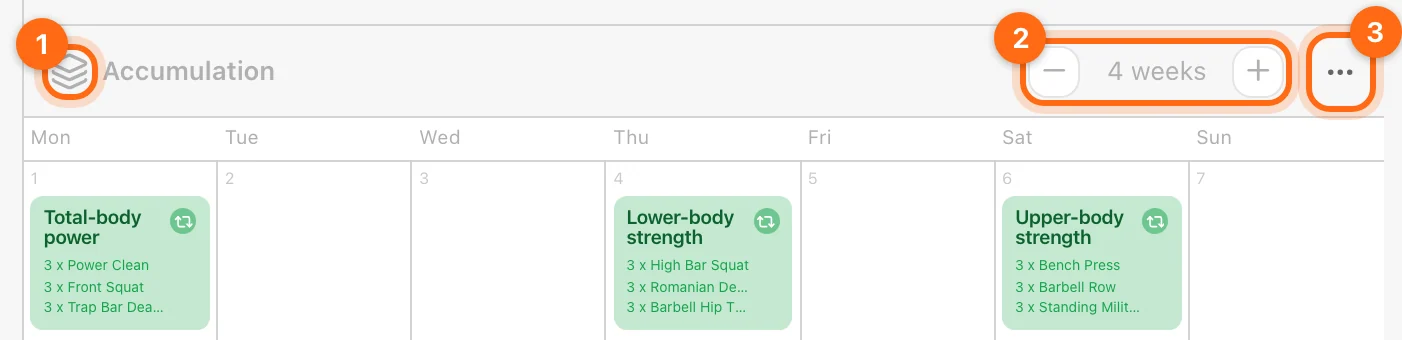
Shortening a phase can remove scheduled work
Reducing the number of weeks prunes workouts beyond the new range. Review the later weeks before shortening a phase, and use a copy when experimenting.
Add a scheduled workout
- Choose a day cell in the phase grid and select +.
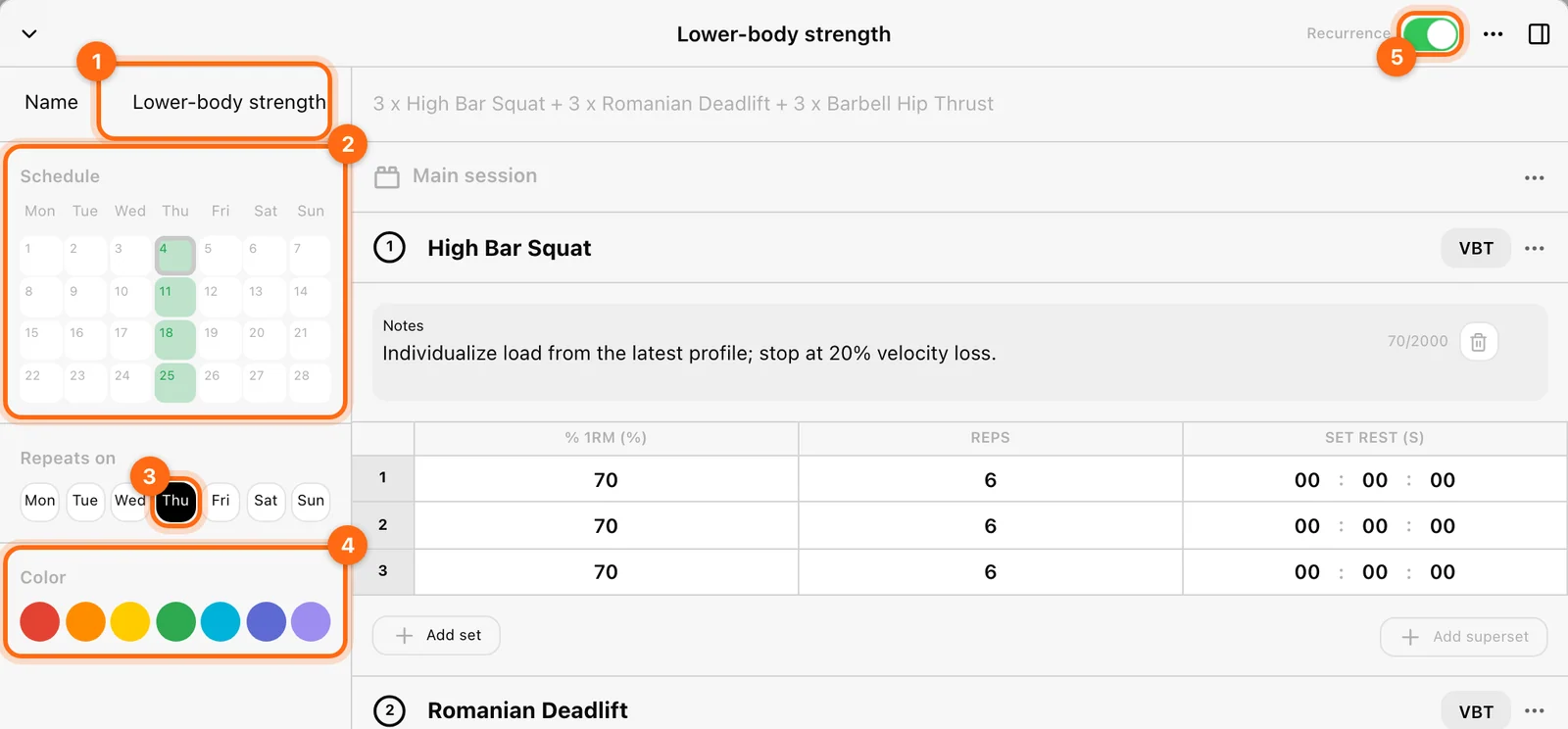
- In the scheduled-workout editor, enter a Name.
- Build the workout or insert the available template content.
- Check its Schedule selections.
- Choose Repeats on weekdays if you want recurrence.
- Select a Color to make the workout easy to recognize.
- Close the editor with the chevron at the top left after the changes save, and review the grid.
On desktop, day/week previews can help you inspect the plan. On smaller screens, open the individual scheduled workout.
Specific dates versus repetition
The phase uses relative weeks and weekdays. The Schedule grid selects specific placements within the phase. Repeats on defines weekday recurrence across it.
Use recurrence for a consistent weekly session. Use specific selections for exceptions or one-off placements. On a repeating workout, the Recurrence switch in the editor's header offers to disconnect the day you opened: it makes a separate copy for that day only. After changing either, inspect every affected week rather than assuming only the cell you initially opened changed.
Review the scheduled chips
Scheduled workouts appear as colored chips. Exercise summaries help identify their content. An empty warning means the workout has no exercise content; it does not mean an athlete has missed the session.

Use the scheduled workout’s ⋯ menu for actions such as Clone workout, Create template, or Delete. A repeated workout and several independently copied workouts are different planning choices—check which one you are editing.
Build from either direction
- Top down: create a program, add phases, schedule workouts, then fill their blocks and prescriptions.
- Bottom up: make reusable workouts or blocks, insert them in phases, then assemble the phases into a program.
Both routes lead to the same structure. Choose the one that avoids repeatedly rebuilding sessions you already use.
Put the plan into use
The template grid has no athlete start date. Create a Live Program to map the structure to dates and people. Confirm the Monday start and assigned athletes before expecting the sessions to appear in Calendar.
Continue with Live programs or Scheduling troubleshooting.
Prescribe sets, load, rest, and velocity
Use the set table and actual app parameter names to prescribe repetitions, percentage loading, velocity targets, and fatigue limits.
Use Vitruve Intelligence
Ask useful app and data questions, edit a plan with the assistant, and review proposals before keeping changes.