Set velocity feedback and automatic set finishing
Understand velocity loss, Top velocity, Velocity Zone, voice feedback, and the separate idle timer that finishes a set.
Velocity feedback helps you recognize whether a repetition meets the intended target. Auto finish set closes the recording screen after inactivity. These are separate settings and solve different problems.
Open the settings
Use the cog in Training and choose VBT, or the settings control in your VBT session's header. You can also open Settings → Training → VBT. At the top, check Use Cloud before changing anything:
- Off: changes belong to this device’s local setup.
- On: changes are shared with other devices in the organization that also use cloud settings and have a connection.
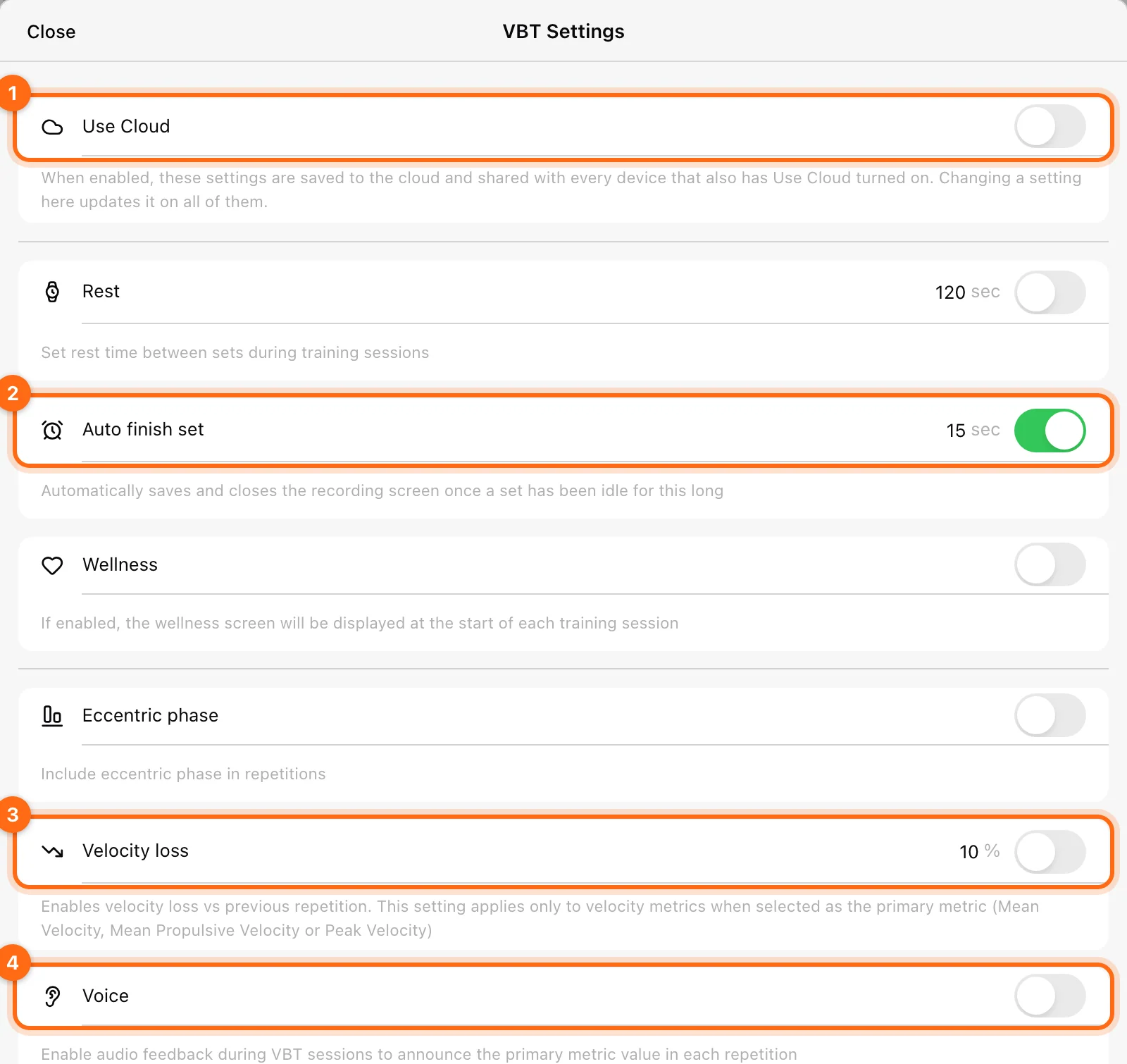
Coaches and Owners need permission to edit shared settings. A local adjustment is useful when you do not want to change every training station.
Choose a velocity primary metric
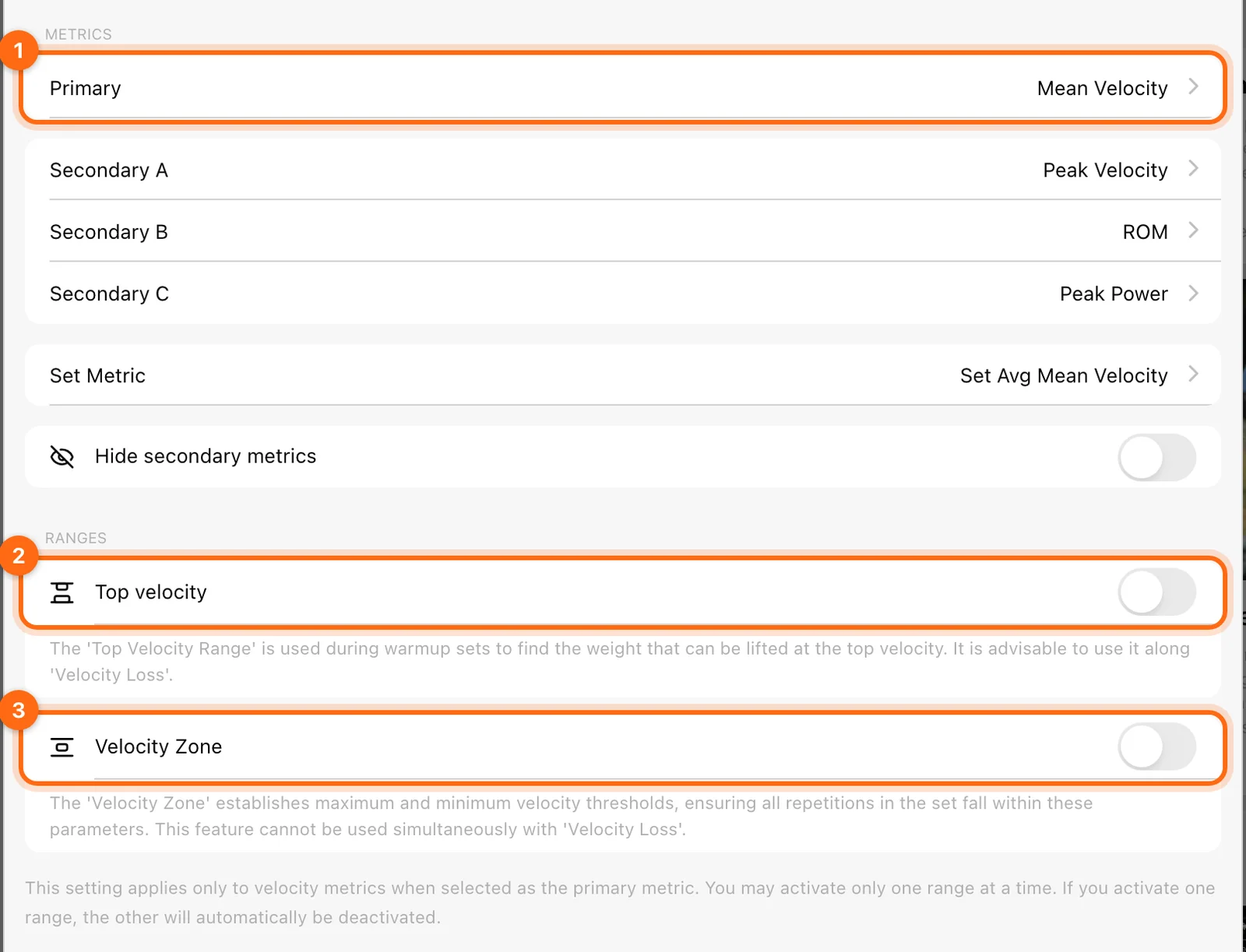
Choose Mean Velocity, Mean Propulsive Velocity, or Peak Velocity as the Primary metric for velocity-specific feedback. Selecting power or force as primary does not make a velocity percentage apply to that quantity.
Keep the metric consistent with the athlete’s prescription and equation. See Prescribe velocity targets for set-level targets.
Velocity loss
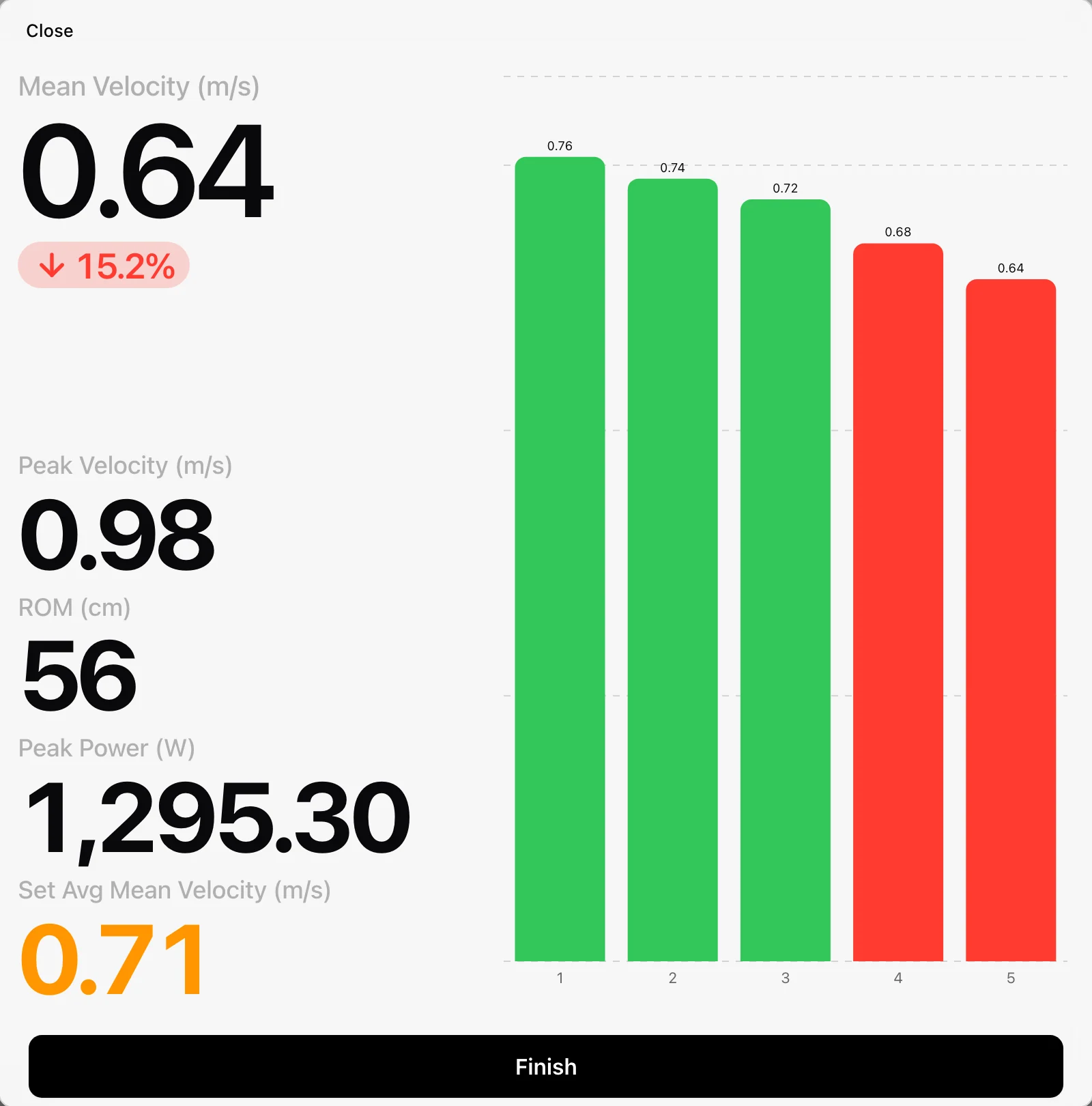
Turn on Velocity loss and enter the allowed percentage. During the set, the app evaluates repetitions for fatigue and plays feedback when the threshold is reached.
For interpretation, a change from a best rep of 0.80 m/s to 0.64 m/s represents a 20% drop: (0.80 − 0.64) ÷ 0.80 × 100. This is an example of reading a percentage, not a recommended threshold for every athlete.
Follow your prescribed stopping rule. A fatigue beep is a signal to the lifter; do not assume that enabling it alone immediately ends the recording screen.
On the recording display, reps that dropped past the threshold turn red in the rep chart.
Top velocity and Velocity Zone
| Setting | What it helps you do | Combination behavior |
|---|---|---|
| Top velocity | Check the best velocity against a minimum–maximum range, useful when finding a working load. | Can be configured alongside Velocity loss. Turns off Velocity Zone. |
| Velocity Zone | Keep repetitions within the selected minimum–maximum range. | Turns off Top velocity and Velocity loss. |
| Velocity loss | Use percentage decline as the fatigue signal. | Turns off Velocity Zone. |
Only one range—Top velocity or Velocity Zone—can be active at a time. If a toggle switches another setting off, that is the intended conflict behavior, not a failed save.
Auto finish set is an idle timer
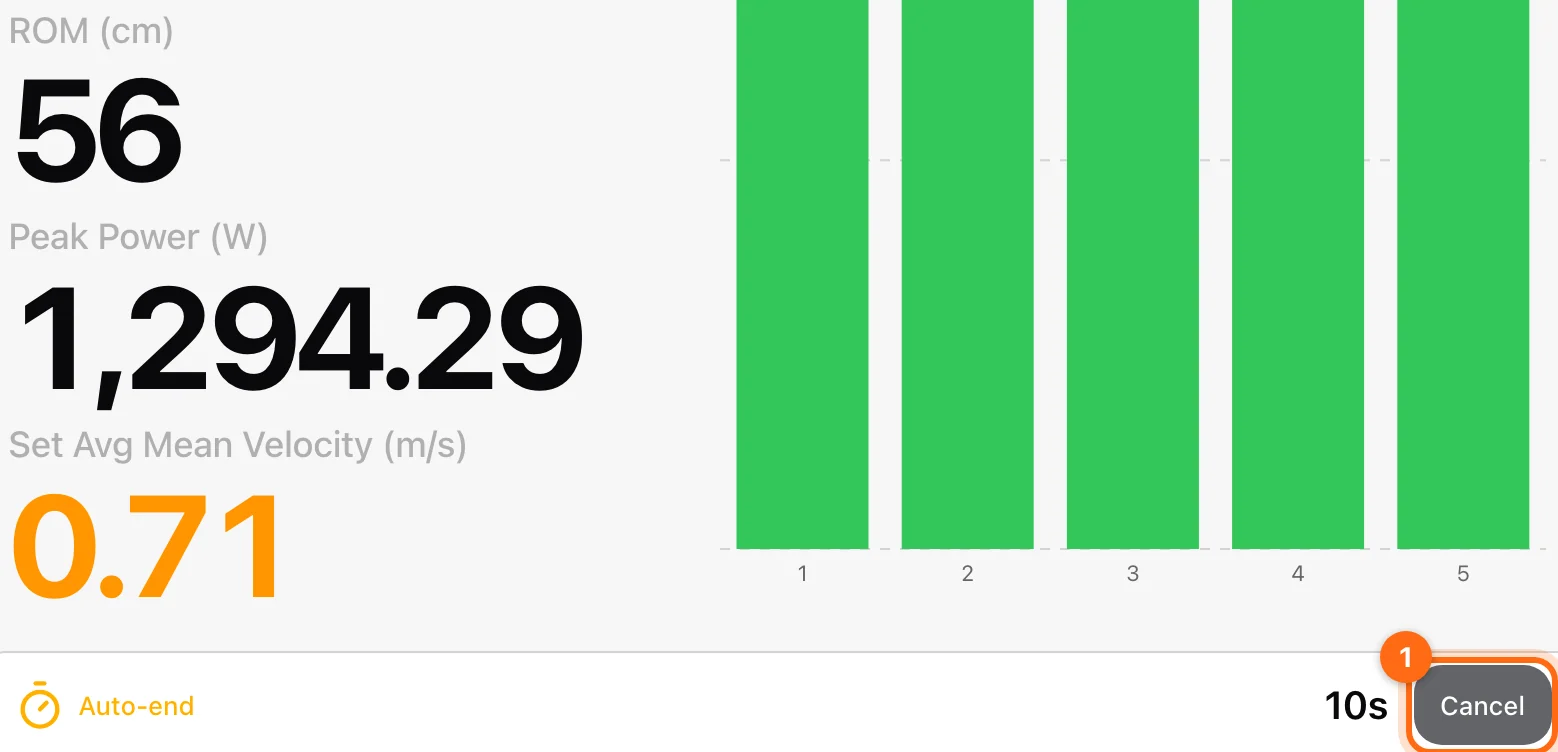
Turn on Auto finish set and enter a duration in seconds. Once the set has repetitions, the countdown restarts as new reps arrive. After the set has been idle for the chosen interval, the app saves the set and closes its recording screen.
A few seconds after the last rep, an Auto-end bar at the bottom of the recording display counts down the time left. Select Cancel on it to keep the set open.
- Choose enough time for the pauses you intend to keep inside a set.
- If the screen closes during deliberate pauses, lengthen the interval or turn it off.
- It finishes a set, not the whole workout.
- It is separate from the Rest timer between sets.
Voice and secondary metrics
Voice announces the primary metric after a rep. Adjust the device volume and check audio routing if you cannot hear it. The primary, secondary, and set metric selectors determine which values you see; they do not change the movement you actually performed.
Check the change
Run a short test set in the intended workout context. Verify the primary metric, the selected threshold or range, and the idle countdown. If another station behaves differently, compare Use Cloud on both devices.
For audio problems, see App settings troubleshooting. For missing or unexpected reps, see Measurement troubleshooting.
Record reaction workouts
Choose Light Chase, Go/No-Go, or Choice, configure duration and difficulty, record events, and review both response timing and accuracy.
Estimate your 1RM during a training session
See a live estimated 1RM while you lift, use the 1RM Calculator to pick a percentage load, and fix a missing or implausible estimate.