I cannot find my workout
Locate a recent session by checking context, filters, active work, pending uploads, and cross-device conflicts before starting over.
First: keep the original recording device’s data intact. Do not clear app storage, uninstall, clear browser site data, or sign out while you are looking for an unsynced session.
1. Was it a saved-workout flow?
If you used Quick Tracking, there is no structured History record to find. That flow is an unsaved live readout.
If you used Workout, VBT, Jump, Sprint, or Reaction, continue below. Ending a set is not the same as selecting the workout footer’s Finish and confirming the whole session.
2. Check organization and athlete
Open the organization where the session was recorded. Coaches should check Coach Mode, the selected roster, and the intended athlete. If the session was recorded under another athlete, changing the current avatar does not move its existing data.
Compare the organization on both devices if one shows the result and the other does not.
3. Clear History filters
Open History:
- Choose a permitted timeframe that includes the session date.
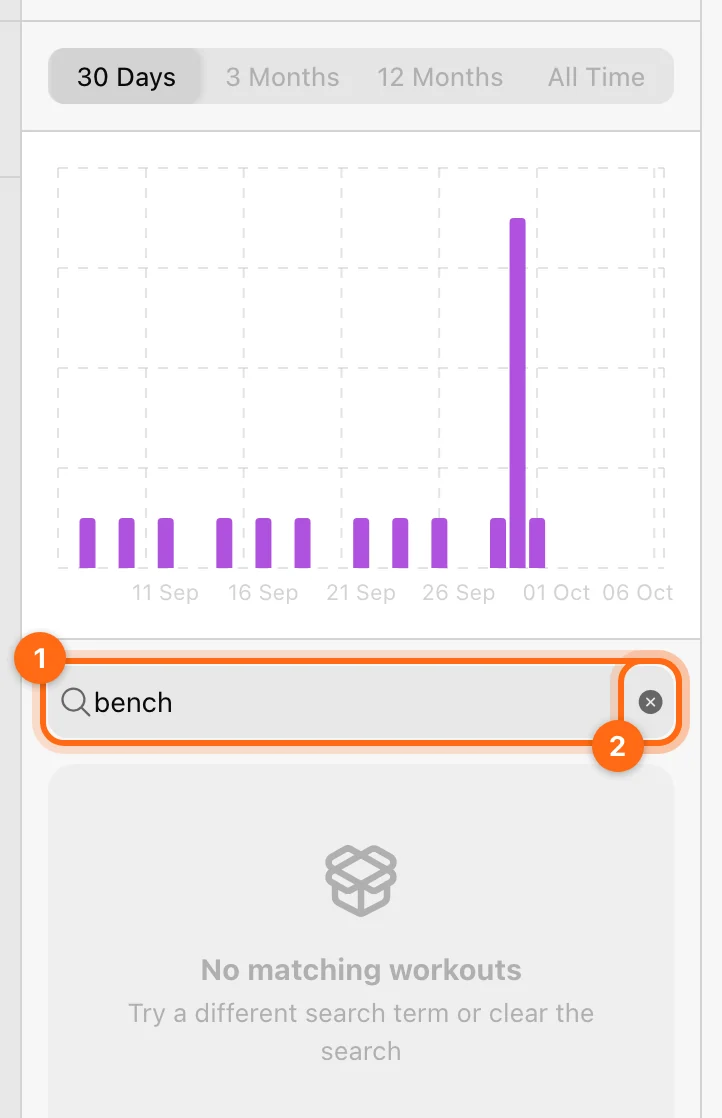
- Clear name search.
- Reset the exercise filter to ALL.
- Review the list and continue loading older entries where needed.
Name search finds workout names, not exercise names. A session containing bench press can be hidden by searching “bench” if its name is “Upper A”.
4. Look for an active session
Reopen the corresponding Training card on the recording device. The app may restore the unfinished workout.
Also check History → Active Workouts. If the correct session is there, review its sets and either resume it or use ⋯ → Finish, set Completion time, and finish it. Do not use Delete if you want to keep the work.
5. Check Pending workouts
Open the cloud / cloud-alert button in the Training header on the original device. A Waiting to be saved record has not yet reached the server.
Reconnect to a stable network, select Retry all if needed, and inspect any error. Confirm that it leaves Pending workouts and appears in History.
For Needs attention, save Download as JSON before asking support to investigate.
If Finish shows an error, keeps spinning, or the workout appears blank, keep the app open until the save attempt settles. Then check the active session and Pending workouts on that same device before trying another device. Retry with a stable connection; do not reinstall to resolve a save error while a local copy may still exist. If there is no recoverable pending record, give support the exact error and the session details below so they can investigate. Recovery depends on whether the session was recorded locally or reached the server.
6. Resolve a cross-device conflict
If the app says Workout ended on another device, inspect History for that other device’s result. Choose:
- Decide later to preserve the local blocked copy.
- Save as new workout to preserve it as a separate record.
- Discard my copy only if you intend to remove the local copy.
Saving as new does not merge overlapping work. Review the resulting sessions before treating the totals as unique training.
7. Check for a deliberate discard or deletion
If you confirmed Discard during the session or Delete on the saved result, the app does not provide an ordinary undo/recycle-bin flow. Repeating a new workout does not reconstruct the original device measurements.
If none of the checks finds it
Contact support with the organization, athlete, approximate date/time and timezone, recording device, training card used, last save action, and any pending JSON file. Include whether another device shows the session.
Use the support checklist so the team can investigate the specific record.
Frequently asked questions
Quick answers for encoder modes and missed reps, app stability, estimated 1RM, subscriptions, legacy encoders, webinars, language, and device compatibility.
A feature or athlete is missing
Check organization, role, Coach Mode, selection, staff assignments, plan, add-ons, and platform in the right order.