Get your first useful answer from Labs
A guided first visit: choose a coaching question, scope a board, check its calculation, and verify the result against recorded work.
By the end: you will have a board for the athletes you coach, reading a metric you recognize, over a deliberate date window—and you will know how to check what the result means.
Use the web app, preferably on a desktop. For this squad walkthrough, you need an Owner or Coach role with athlete access, a plan with Labs, and Coach Mode on. Athletes and coaches training personally have their own Overview, Trends, and Records; those pages are separate from the team reports used here.
1. Start with a question
For your first board, ask: “What did each athlete achieve on the lift we trained this block?” Open Labs → Reports → Comparison. Save Profiles and deeper Insights for a second pass; you do not need to configure every Labs screen to get a useful answer.
2. Choose who and when
Open Setup using the panel button in the header on a wide screen. On narrower screens the controls appear above the board.
- Select Date and choose a window containing the training block. Use Custom → Apply for a fixed block rather than a rolling window.
- Select Team, or use Athletes to hand-pick your group.
- Check any Add filter rules. An athlete without the matching profile attribute is excluded.
Selecting no individual athletes means the whole roster, not an empty analysis. Check the scope before reading the result.
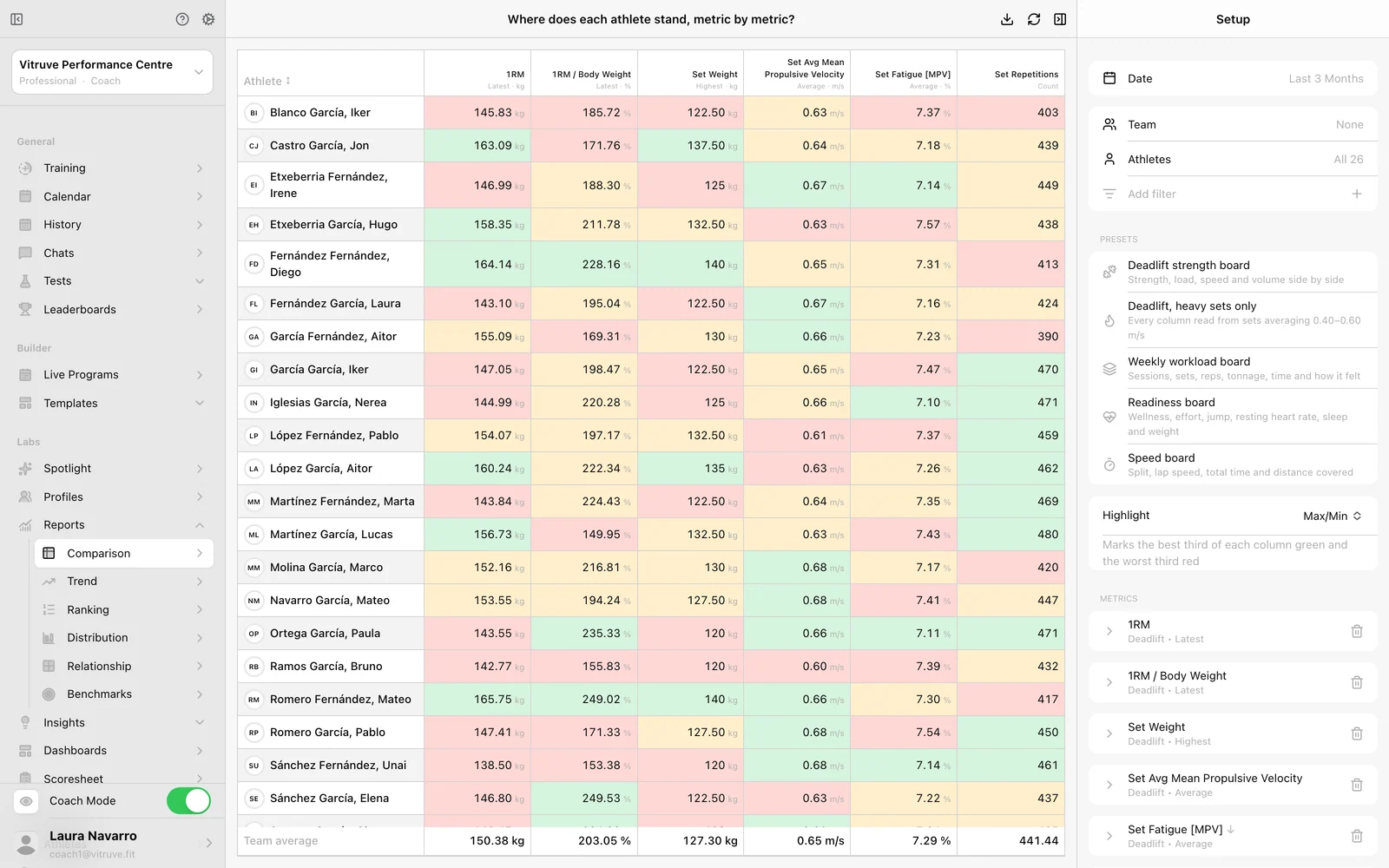
3. Start from a preset, then make it yours
Choose a curated Preset that fits the question, such as a strength board. A preset is a starting analysis setup, not proof that your athletes have data for its exercises.
Open each relevant metric block and check:
- Metric: the quantity you want, such as estimated 1RM or a velocity metric.
- Calculation: what the board should summarize. A highest value answers a different question from an average.
- Exercise: the exact movement your group recorded, including its variation.
- Filters: phase, source, or ranges that might exclude work.
If the preset uses deadlift but you trained a squat variation, change the exercise. A metric block waiting for Choose is incomplete.
4. Read the result and its coverage
Look at the value and unit, then identify missing cells. No value does not mean zero or poor performance. It can mean no matching measurement in this scope.
Do not compare two athletes as if the conditions were identical without checking their exercise, load, protocol, and calculation. For estimated 1RM, remember that an equation and relevant filters contribute to the result; this is not a directly measured maximal attempt.
5. Check one athlete before acting
Open Labs → Profiles, choose an athlete, and use Overview for the broad picture or Trends for period-by-period changes. Open History in the same organization and athlete context to inspect the sessions behind a surprising result.
Success check: you can explain who was included, which dates were read, what the metric/calculation means, and why at least one displayed value agrees with the recorded work.
6. Keep or share the useful output
- Save as preset keeps a reusable metric setup in this browser. It does not save the current dates or roster.
- Download CSV exports the board summary. For workout-level files, use data export.
- A page link opens the recipient’s own setup, not a copy of yours. Include scope and calculation details when discussing an export with staff.
- Use Dashboards to keep several boards together in an account-saved, private workspace.
Next, use Labs in your coaching week for three repeatable routines. For exact controls, see Setup and presets and Metrics and calculations.