My reps, velocity, or 1RM look wrong
Check recording context, units, active hardware, metric, filters, equations, and manual overrides before changing the data.
Use this checklist for missing or extra reps, unexpected speed, absent estimated 1RM, or implausible suggested loads. Change one setting at a time and test it on the same athlete and exercise.
1. Check the recording context
Confirm organization, active athlete, exact exercise variation, and entered load. Check kg versus lb before interpreting a number. Confirm the active device’s checkbox, not only its Connected label.
A set under the wrong athlete or wrong load can have a valid-looking velocity while its derived result is misleading.
2. Check the metric
MV, MPV, and PV are different quantities. All use m/s, but peak velocity can be higher than a mean value for the same rep.
Check the primary metric, the prescription’s metric, and the equation’s metric. Do not compare a peak value from today with a mean value from last week and interpret the difference as progress.
3. If no reps appear
- Check the connection and active encoder.
- Check recording is running, not paused.
- Check the exercise/modality is compatible with the hardware.
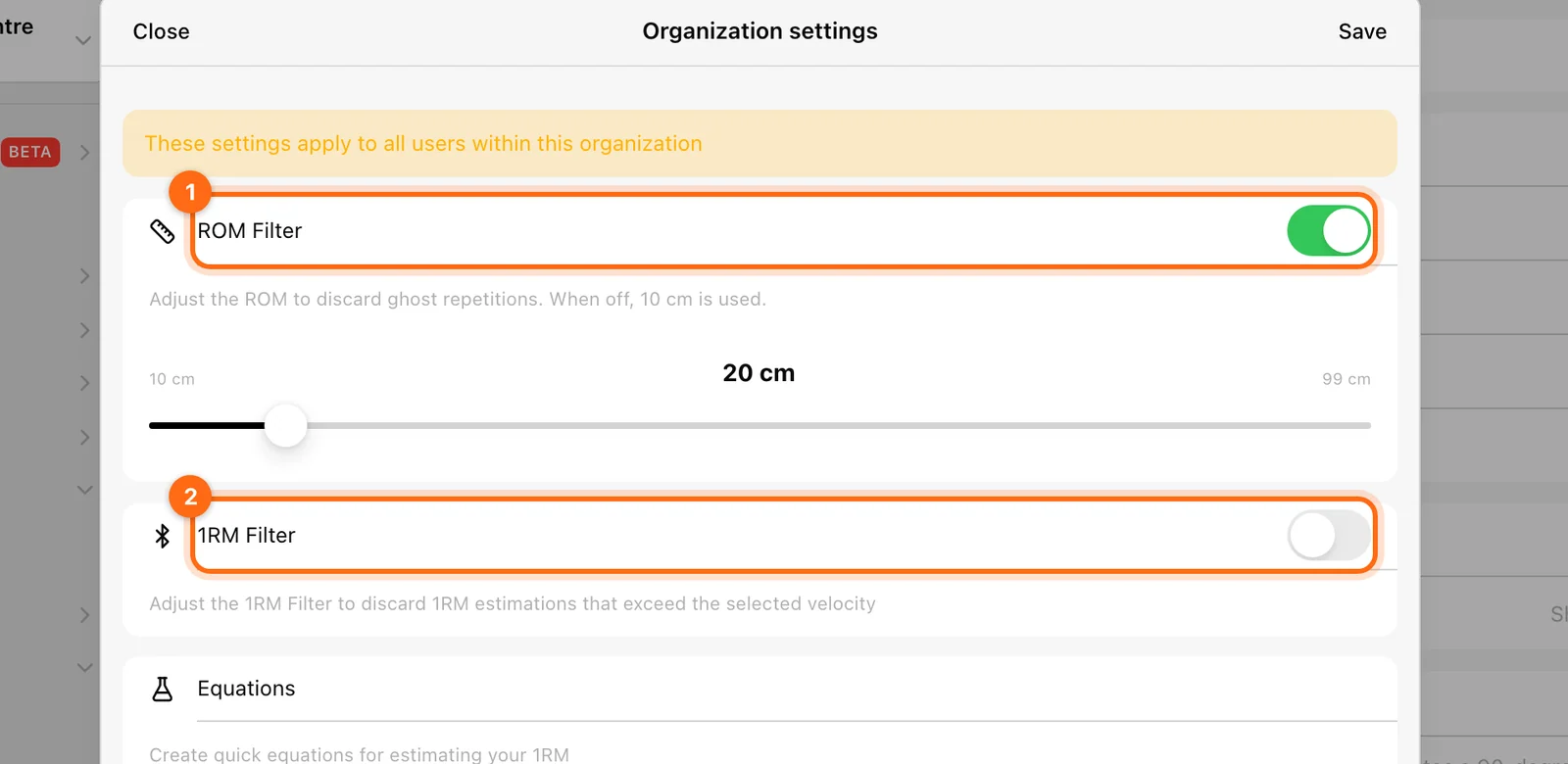
- Check the exercise’s ROM Filter, including any athlete override.
- Use a short test under the intended setup.
A restrictive ROM threshold can filter valid movement. Adjust it for the athlete and exercise rather than globally removing filters for every movement.
4. If extra or “ghost” reps appear
Check unintended tether movement, stable placement, and whether the tether is catching or touching the device case. Then review the ROM Filter for the exact exercise.
Use available delete controls for a bad set/record. Do not assume changing a filter afterward rewrites old measured repetitions.
5. If the wrong movement phase appears
Check the device’s movement-direction mode for the model you are using, plus the app’s Eccentric phase setting. Displaying eccentric data intentionally is different from a device detecting the opposite movement direction.
If all values appear unusually slow, verify phase and metric before editing an equation.
6. If estimated 1RM is missing
Check:
- A usable equation exists for this athlete and exercise.
- The intended equation is selected.
- Its velocity metric matches the data.
- The actual training load is entered correctly.
- The exercise’s 1RM Filter is not excluding the input.
- Override 1RM and manually entered values are configured as intended.
- The organization includes the specific estimation/suggested-load display feature.
You can record velocity even when the 1RM workflow is not configured. See Create equations and manual 1RM.
7. If estimated 1RM or a percentage load is implausible
Review the equation’s dated testing rows, reference velocity, exercise variation, unit, and quality. An old profile, inconsistent technique, or mixed metric can produce an unsuitable estimate.
Check whether a manually entered 1RM is taking precedence. Do not raise the 1RM filter merely to force a desired estimate onto the display.
8. Check calibration and workout-specific inputs
- Force calibration: changing Vitruve/Vicon applies to new measurements; old data is not recalculated.
- Jumps: body weight and external Load are different inputs.
- Sprints: speed depends on segment distances and units; trigger/course changes affect comparisons.
- Reaction: scored games need accuracy interpreted with timing.
You are ready when
A short recorded set uses the right context and metric, recognizes the intended reps, and has a consistent load/profile setup. If the result remains unexpected, preserve the session and send its details to support.
A feature or athlete is missing
Check organization, role, Coach Mode, selection, staff assignments, plan, add-ons, and platform in the right order.
A scheduled workout is missing or on the wrong day
Check assignment, Monday start, phase length, recurrence, content, and calendar context before rebuilding the program.