Assign and manage live programs
Turn a reusable plan into dated workouts, assign athletes, edit the active plan, and reuse it without carrying over assignments.
A Live Program is the plan athletes can follow on dates. It has a start date and assignments. A program template is the reusable structure you start from.
Before you begin
You need permission to create programs. Turn on Coach Mode to assign a program to other athletes. Outside Coach Mode, a new live program is assigned to you for personal use.
Prepare a program template or build the structure in the live-program editor. Add your athletes to the organization before trying to select them.
1. Create the live program
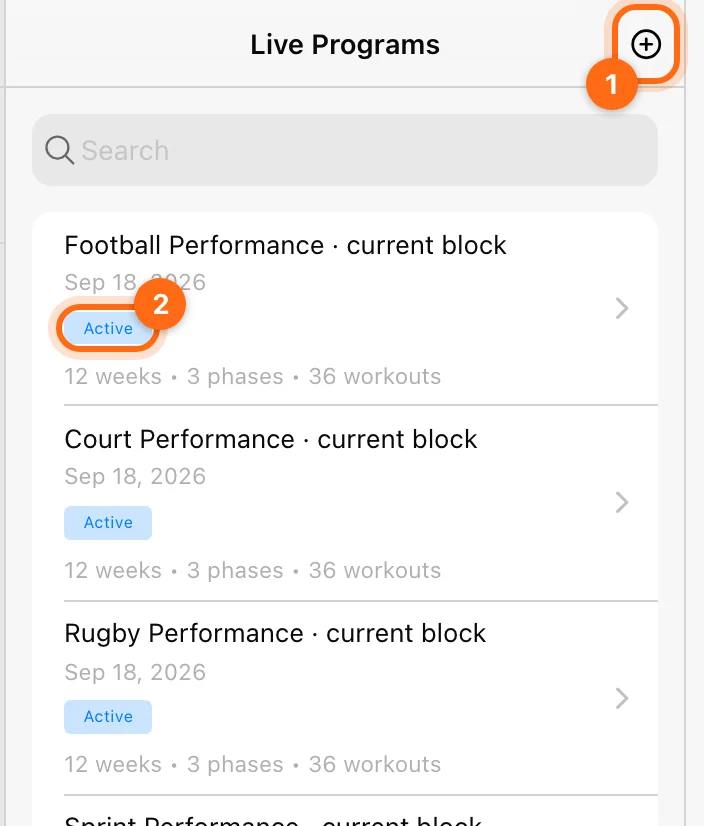
Open Builder → Live Programs, select +, and enter a recognizable name. The editor starts with a default phase. Load your intended program template or build the phases and workouts directly.
Check the content before replacing an existing structure with a template.
2. Set the start date
Use Start Date to choose a Monday. Phase weeks align to Monday–Sunday, so the picker does not offer arbitrary starting weekdays.
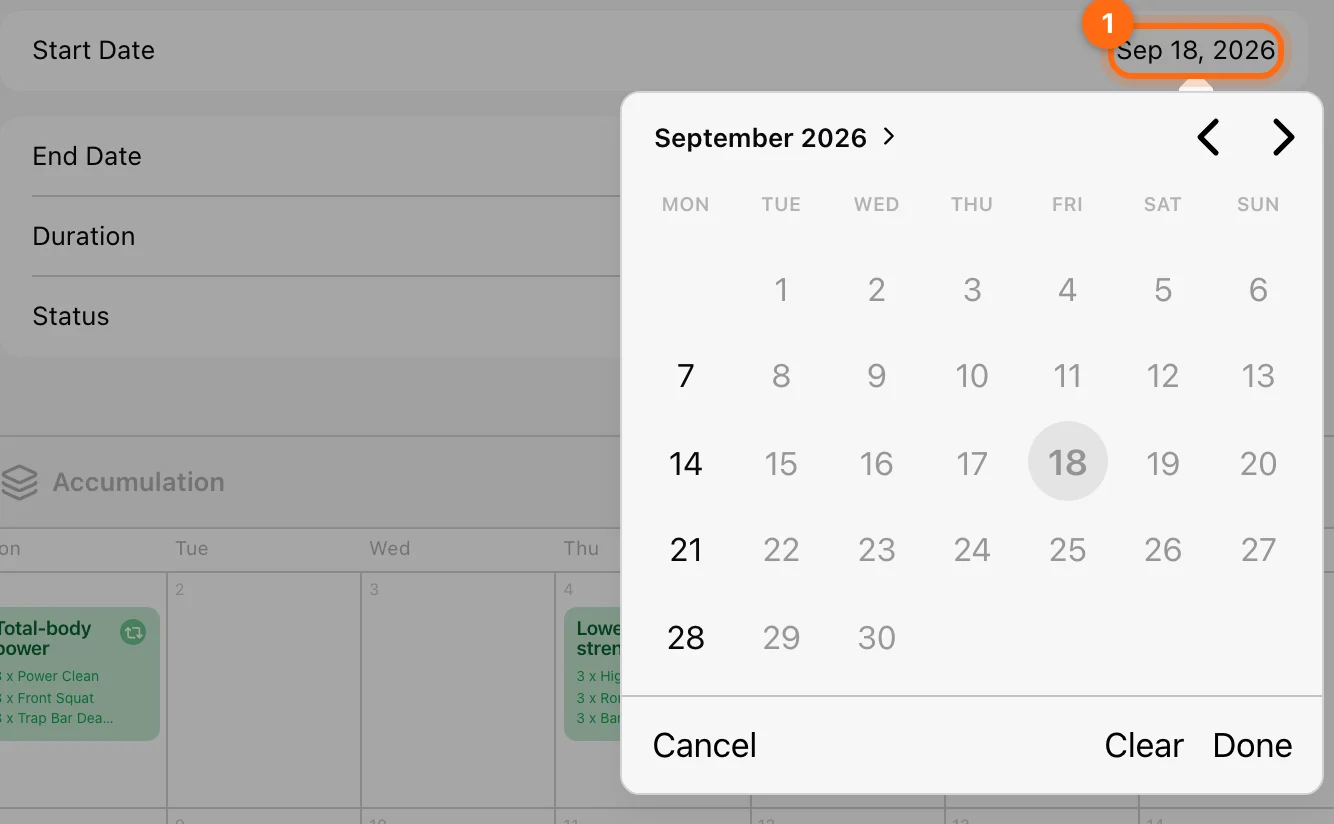
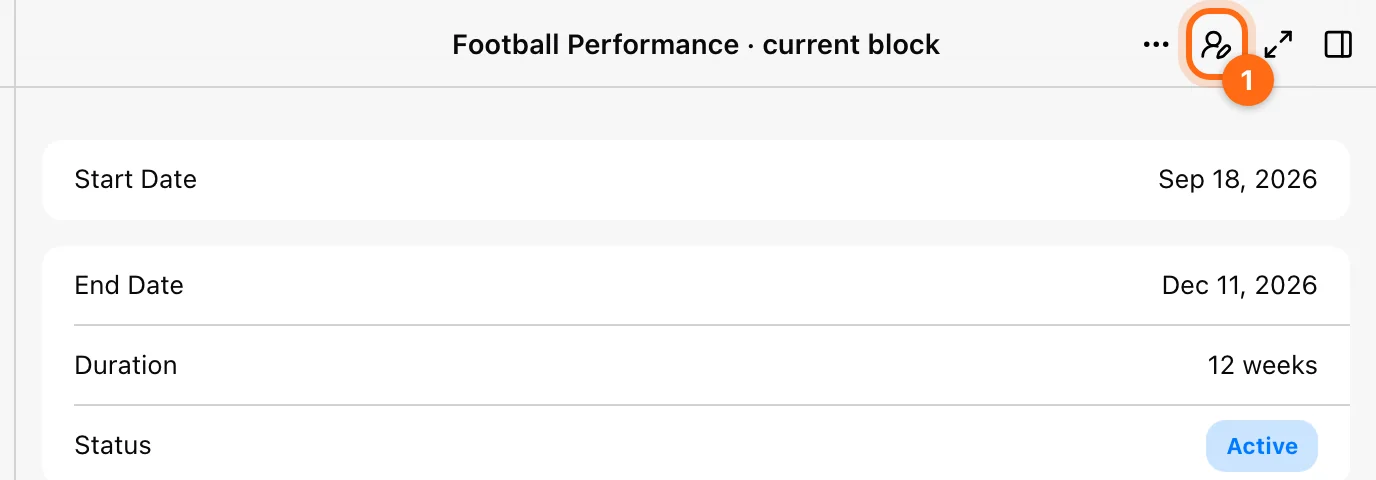
The end date and duration come from the phase structure. If the end is wrong, check the number and order of phase weeks rather than looking for a separate end-date override.
Status labels such as Not started, Active, and Finished describe the program’s timeline/state. They are not proof that every workout was completed or uploaded.
3. Assign athletes
In Coach Mode, open the header’s athlete selector. Search for the athletes on Athletes, or switch to Teams to select a whole team; each team shows how many of its athletes are selected. Select all and Deselect all act on the list shown. Select Close to apply the selection.
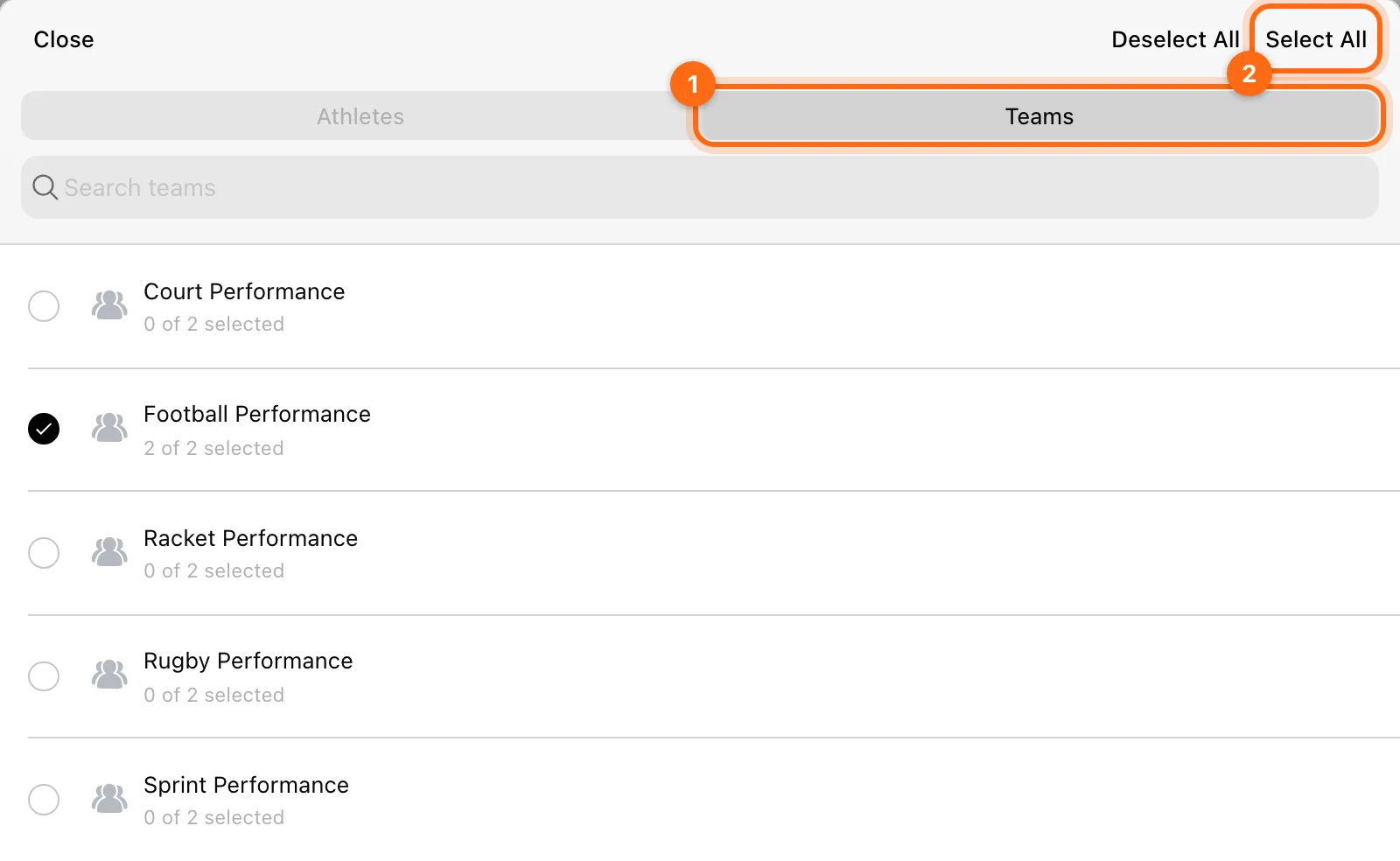
There is not a single separate “assign whole team” command: team filtering plus athlete selection provides that workflow. Check the selected names before closing the selector.
If an athlete is missing, verify roster membership and your assigned-athlete access. A pending email invite is not necessarily an active roster membership.
4. Check delivery
Open Calendar, choose one assigned athlete, and navigate to the relevant month. Find the expected session and open its prescription preview.
Then have the athlete open Training → Workout → Calendar to load the session they will perform. A correctly named template in your library does not by itself confirm delivery.
Change a plan mid-cycle
Edit the phases, scheduled workouts, or prescriptions in the live program when you want to change that assigned plan. Editing the original template is a separate action and does not substitute for reviewing the live instance.
Check who shares the live program before editing it. If one athlete needs an independent variation, make a separate copy and assign it deliberately.
Reuse for another group
Use ⋯ → Create a copy. The copy starts with an empty athlete list, so:
- Give it a clear new name.
- Check or change its Monday start date.
- Assign the new athletes.
- Confirm the resulting dates in Calendar.
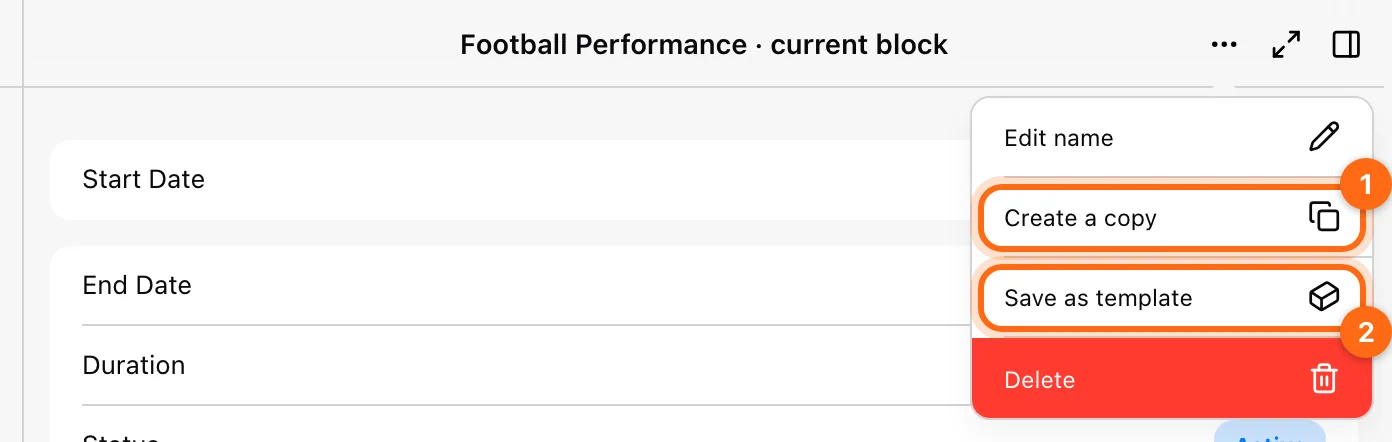
Use Save as template when the modified structure should become reusable planning material. Review both dates and assignments whenever reusing a live plan.
If the plan is missing from Calendar
Check: organization → athlete → live-program assignment → Monday start → phase scheduling → month. Follow A scheduled workout is missing before recreating the plan.