Training and workouts
Understand the Training page, choose your workout flow, record the right athlete’s work, and finish with results you can trust.
Training is where you record workouts. A workout can combine lifting, jumps, sprints, and reaction exercises, or focus on one kind of work. All of those recording flows produce workouts that you finish and review in History.
Start with the Training screen guide if you want to understand every card and header control. If you are new to the app, follow Record your first workout.
Two ways to record a workout
| Flow | How you start | Best fit |
|---|---|---|
| Workout | Choose today’s scheduled session, Calendar, a workout template, or Add exercises. | A planned or mixed session with editable exercise/set tables. |
| VBT / Jump / Sprint / Reaction | Choose the exercise and mode-specific inputs, then record sets. | An on-the-fly workout focused on that kind of recording. |
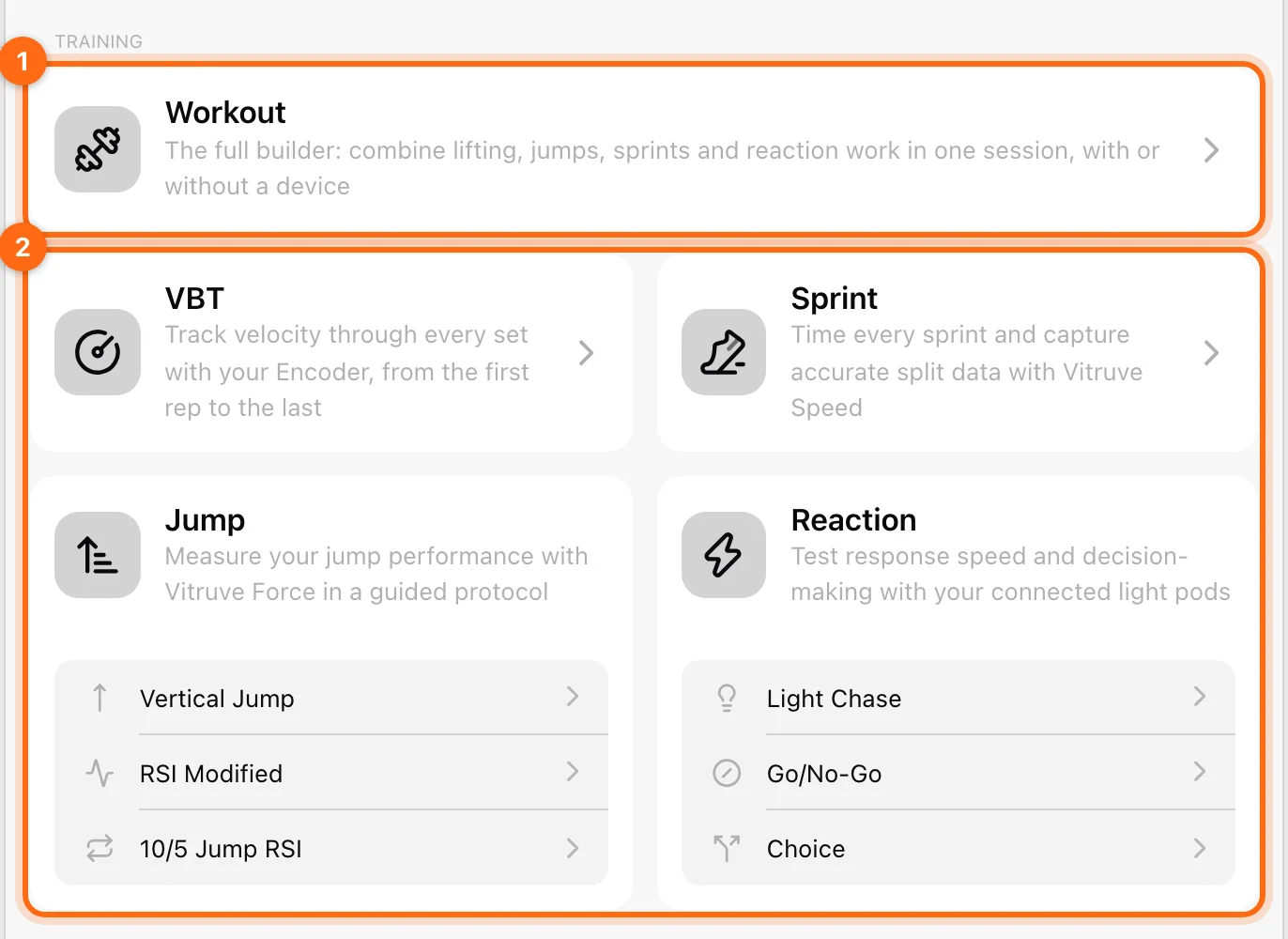
You can log a session in three ways: from scratch (Workout → Add exercises, or a focused card such as VBT), from Calendar (a session your coach scheduled, with exercises and loads already filled in), or from a template (Workout → Use a template, then adjust loads, reps, or exercises). Record your first workout walks through each. Quick Tracking also connects your encoder, but it saves nothing.
Focused workout cards do not open the same calendar/template chooser as Workout. Use the general Workout card to perform a prescribed mixed session. Opening a focused card alone does not create a completed workout or start the recorded-session timer.
Choose the guide for your next session
A complete or mixed workout
Load a plan or build a session, enter performed values, and record different exercise types together.
A VBT workout
Choose a lift and load, capture bar velocity, and review your sets.
A jump workout
Use Vertical Jump, RSI Modified, or 10/5 Jump RSI with Vitruve Force.
A sprint workout
Configure distances and triggers, capture runs, and review split times.
A reaction workout
Run Light Chase, Go/No-Go, or Choice and review timing and accuracy.
Know what you are recording
- Workout: the whole session, with its athlete, organization, name, and RPE.
- Exercise: the movement or drill within it.
- Set: a group of performed work for that exercise—a lifting set, a group of jumps, a sprint run, or a reaction game.
- Repetition/event: an individual recorded rep, jump, split, or reaction event within a set.
- Prescription: the target values you intended to perform.
- Executed value: the value actually recorded or entered.
A prescribed number shown as a placeholder is not necessarily an executed result. Marking a set complete can copy untouched prescribed values into the executed fields; measured events still require real device capture.
Follow the session from setup to saved result
- Check the organization where this session should live.
- Check the active athlete, especially on a shared coaching device.
- Open the appropriate workout flow.
- Check exercise, load/units, protocol, and the device driving it.
- Record and finish each set.
- Use Summary to review the whole workout, its name, and RPE.
- Select the workout footer’s Finish and confirm.
- Wait for background processing and check Pending workouts if needed.
- Find the completed result in History.
The recording display’s Finish ends a set. The workout footer’s Finish ends the workout. Both controls matter.
Use the supporting training tools
| Task | Guide |
|---|---|
| Connect and choose an active encoder or Vitruve Speed device | Device connection |
| Configure velocity feedback, rest, and idle finishing | Velocity feedback |
| See a live estimated 1RM and choose a load by percentage | Estimate your 1RM during training |
| Test four progressive loads to build an RM equation | Load–velocity profile test |
| Inspect reps, correct load, or move wrongly attributed work | Review and correct during training |
| Rotate athletes through one station | Group training |
| Run two stations side by side on one tablet | Multistation split screen |
| Watch active workouts on other stations | Coach Live |
| Record body weight and height | Body measurements |
| Keep, discard, or resume a session | Finish and recover |
| Preserve work without internet or resolve pending uploads | Offline and sync |
| Watch an unsaved live readout or recent continuous curves | Quick Tracking and Realtime Monitor |
If you are not ready to record
Use the actual message as a setup checklist: select an exercise, connect the required device, choose the algorithm, or add athletes. A green Bluetooth icon means some hardware is connected; it does not prove the required family or model is active for the current exercise.
If you hit a workout-capacity message, finish and preserve the current workout before continuing in a new one. If a set was rejected, inspect the session list rather than assuming it was captured.